
New feature
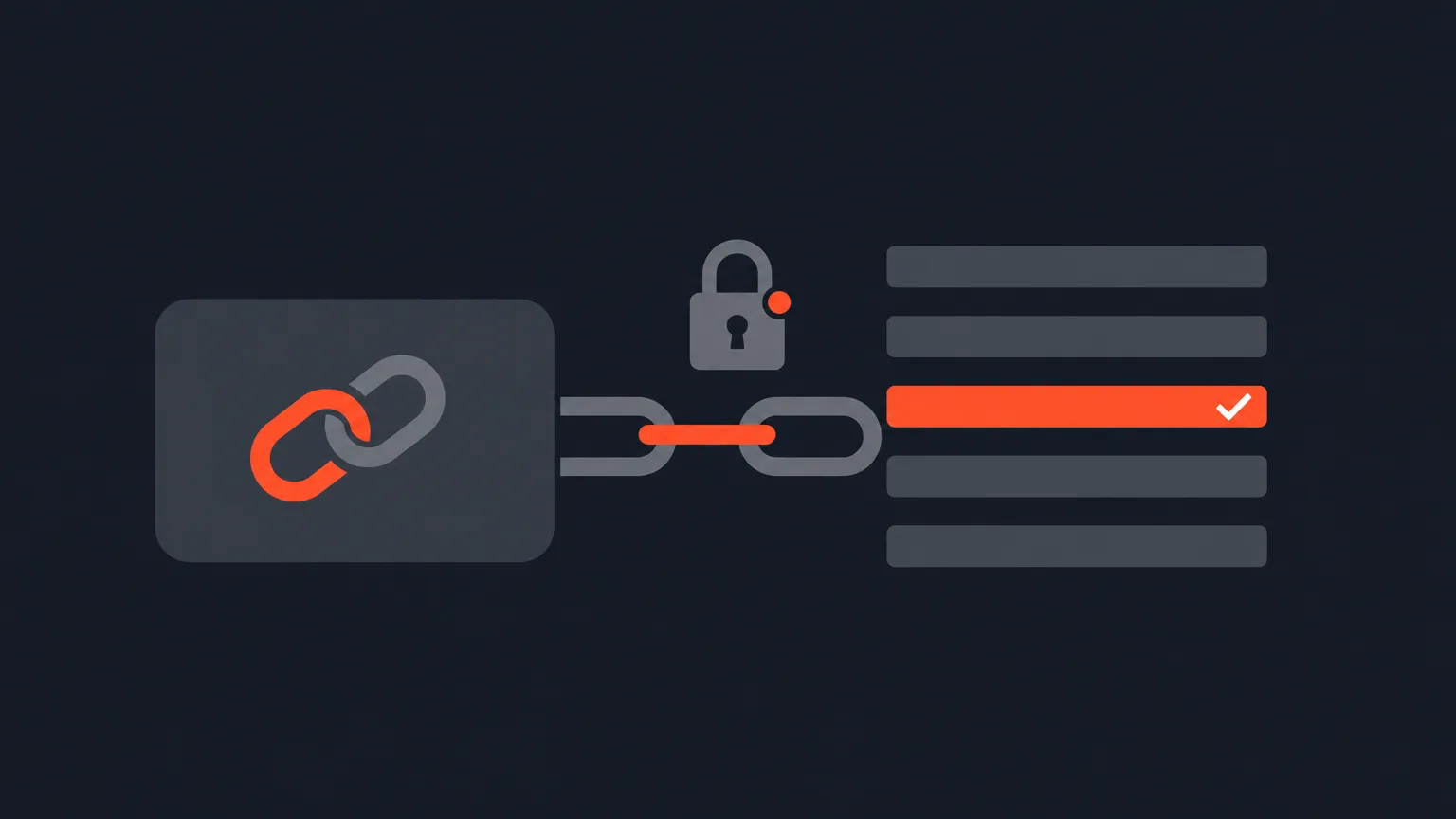
Share Links For Client Review
Share Links let you send a client the transcript itself, so they can read it, pick lines, leave notes and approve, all without creating an account.
What it is
A Share Link opens your project (or a whole folder of projects) straight in the browser. Your client sees the same Select, Arrange and Review views you work in, filtered by the All, Must have or Maybe tags, and can make their own picks, leave notes, chat with you, and click Approve when they're happy. No account, no password to create, no app to download.
The problem it removes
Getting client feedback on a raw recording usually means sending a giant video file and waiting for a scattered email of timestamps. A Share Link skips that. The client reads the transcript like a document, marks the parts they want, and their notes and picks show up right where you're already working. If the project is sensitive, you can lock the link with a password in the Share Link Settings.
How it works in practice
Say you're cutting a podcast episode down for a coffee brand's marketing team. You upload the raw audio, pick the best lines in Select, arrange a rough story, then send them the project's Share Link. They open it, filter to Must have lines, add a note asking to swap two lines, and click Approve. You get notified, the version locks, and you move on to export. If you'd rather they only see a clean finished read instead of your working views, flip the link to a Presentation link first, which shows only the polished Review page with chapter headings and runtime.
Folders work the same way. If you're handing off a whole series, like every episode of a recurring interview show, a folder's own Share Link opens every project inside it, so you send one link instead of one per episode.
Who it helps most
This is built for anyone who needs sign-off from someone outside their editing tool: an agency reporting back to a marketing client, a podcast host checking selects with a producer, a documentary team getting notes from a subject, or a UGC creator sending a rough cut to a brand for approval. You keep working in ScriptCut. They just click a link.
Manage every link from one place with the Shared Links icon in the main sidebar. Open it from the Dashboard to see every project's review links, or open it from inside a project to filter to just that one.
Ready to try it? Open ScriptCut and send your first Share Link.
frequently asked questions
No. They open the link, type their name, and can start reading, picking lines and leaving notes right away.
Yes, the Password option is in that project or folder's Share Link Settings.
They can read Select, Arrange and Review, switch the All, Must have or Maybe filter, make their own picks, leave notes, chat with you, and click Approve. Exporting, renaming speakers or using AI only work if you turn those on.
They open the share link, enter their name, review the selection, and click Approve, which locks the project and notifies you.
Yes, every folder has its own share link, so sharing the folder gives access to every project inside it at once.
Click the Shared Links icon in the main sidebar. From the Dashboard it lists every project's links, and from inside a project it filters to just that one.
Yes, a Presentation link shows only the finished Review page with chapter headings and runtime, hiding the Select and Arrange working views.
Start selecting.

Pick the story in the transcript, export a finished rough cut.
Get the ScriptCut newsletter
Thanks! Check your inbox to confirm.
Something went wrong. Please try again.