
New feature
Clean Up Audio For Every Export
Your exported audio and video, and every Social clip, can now have rumble, hum, and background noise removed and loudness set to the standard you need, with one switch.
What It Is
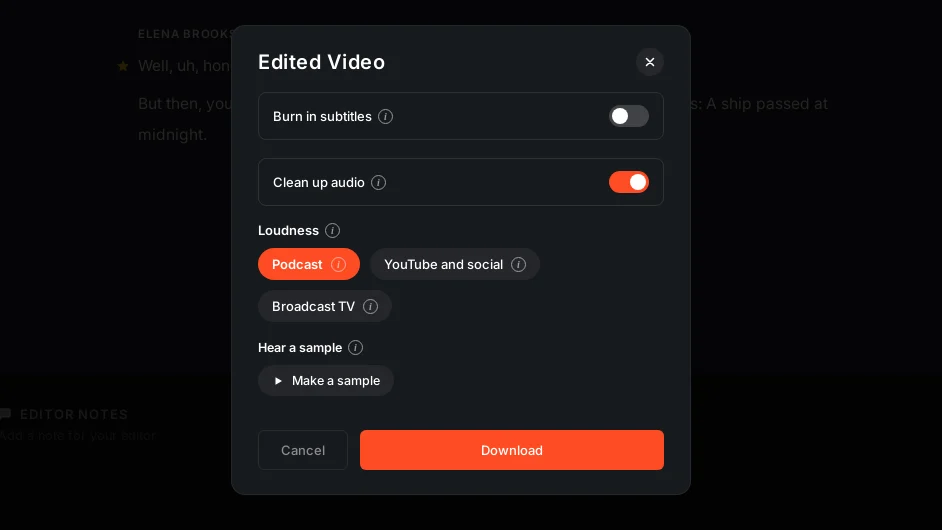
Clean up audio lives in the Edited Audio, Edited Audio High Res, and Edited Video windows under Review and Export, and on every Social clip. It measures the recording, then removes low rumble, mains hum, and background noise with a speech model, evens out quiet and loud moments so every word lands at a similar level, gently balances the tone of the voice, and sets the whole edit to one even loudness. It is off until you switch it on, and your choice is remembered for next time.
The Problem It Removes
A recording made in a real room rarely sounds consistent. One speaker trails off, another leans into the mic, an air conditioner hums under the whole track. Fixing that by hand means a trip to an audio editor you may not have time for, especially on a quick turnaround clip. This feature does that pass for you, without cutting a word, a breath, or a quiet word ending.
How It Works
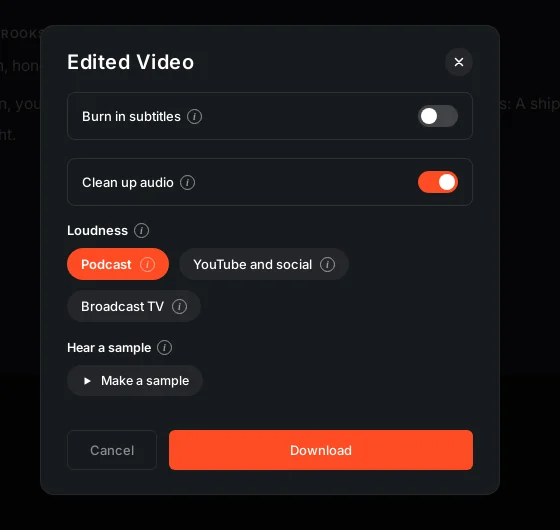
Say you have a panel recording with uneven mic levels and a low hum from the venue's air system. Switch on Clean up audio in the Edited Video window, pick your Loudness standard (Podcast, which is the Apple and Spotify standard and the default, YouTube and social, or Broadcast TV), and export. The hum and rumble disappear, every speaker sits at a similar level, and the file hits the loudness target you picked. Music inside the recording, an intro or a sting, is found and left exactly as recorded, only its level matched to the voice around it; if a section is mostly music, it can land slightly under the target rather than get squeezed to match. Before you commit, use Make a sample to hear about 15 seconds from the middle of the edit, cleaned, next to As recorded, so you know what you're getting.
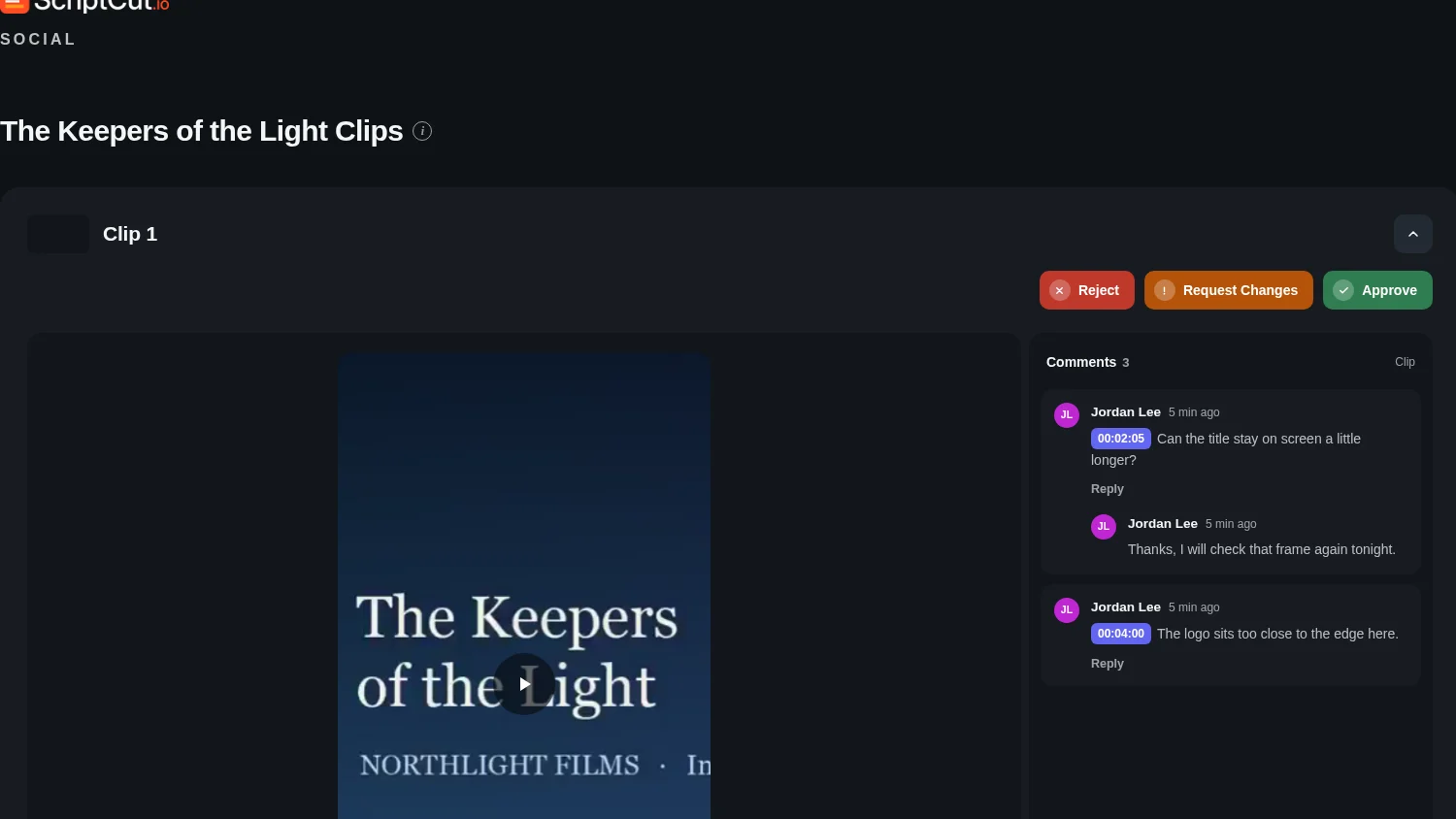
On Social clips, the same cleanup sits in the Audio step, right after Video, under Music, with YouTube and social as the default. It's applied per clip, to the finished file of every shape you export, and to anything a client downloads from a review link. It also levels the music bed and any opening or closing videos to match the cleaned voice. Your editor preview still plays the sound as recorded, so what you hear while editing is the raw take; the cleanup happens on export.
What Stays Untouched
Clean up audio never touches your Compressed or Original downloads, or the timeline XML you send to your editor; those always carry the sound exactly as recorded. The cleaned file keeps its original type, so a lossless master stays a WAV at its own depth and sample rate, and its filename ends in -clean so you can always tell the two apart.
Who It Helps
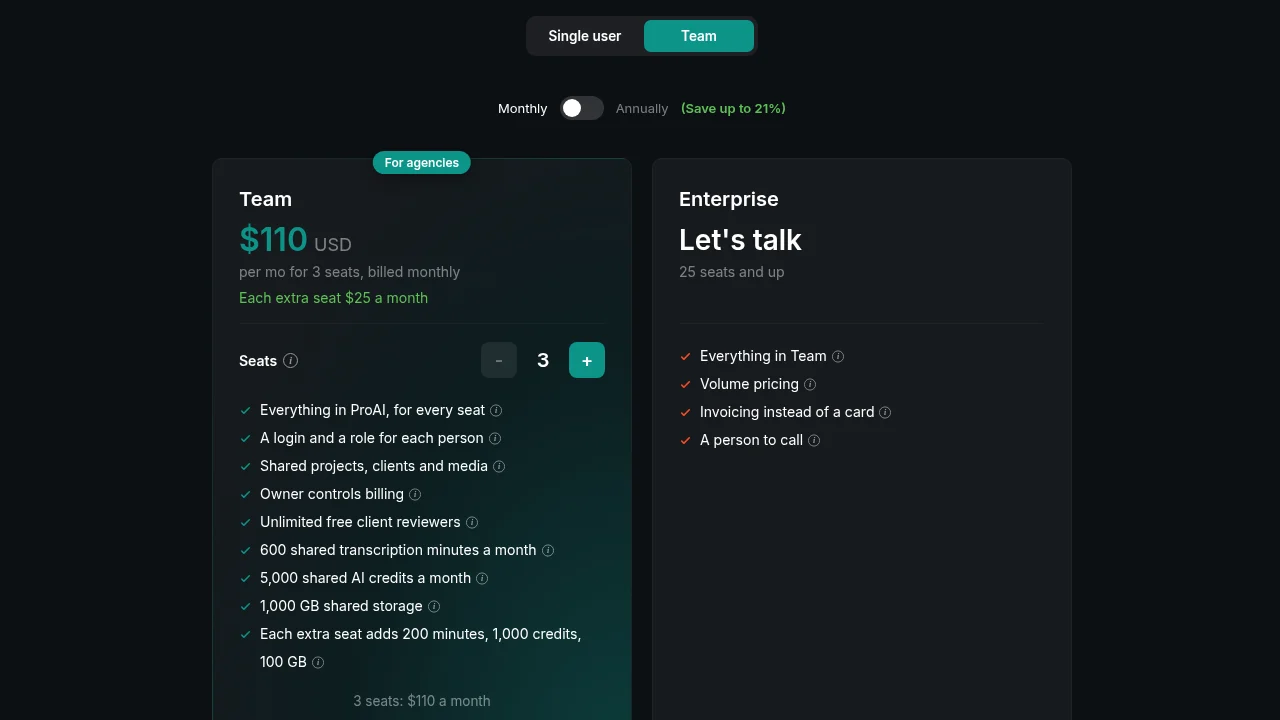
Podcast editors who need a consistent loudness pass before publishing, agencies turning raw interviews into client-ready video without an audio pass, and anyone producing Social clips from noisy real-world footage all get a cleaner result with no extra tool and no extra step in their workflow. It runs on Starter and ProAI, plus trial and beta; on Free the switch shows a padlock that opens the plans.
Try It
Turn it on for your next export and hear the difference before you commit, right inside ScriptCut.
frequently asked questions
No. It never cuts a word, a breath, or a quiet word ending; it only removes noise, evens out levels, and sets loudness.
Music like an intro, sting, or bed is found and left exactly as recorded; only its level is matched to the voice, and a mostly musical section can land slightly under your chosen loudness rather than get squeezed.
You can pick Podcast, the Apple and Spotify standard and the default, YouTube and social, or Broadcast TV.
No, Clean up audio costs no AI credits or minutes.
No, those always carry the untouched sound; Clean up audio only affects the Edited Audio, Edited Audio High Res, and Edited Video downloads, and Social clips.
Yes, use Make a sample to hear about 15 seconds from the middle of the edit, cleaned, next to As recorded for comparison.
Yes, it's in the Audio step under Music, applied per clip with YouTube and social as the default, and it also levels the music bed and any opening or closing videos.
More Product updates
Start selecting.

Pick the story in the transcript, export a finished rough cut and ready to post short form video.
What are you looking for?
Get the ScriptCut newsletter
Thanks! Check your inbox to confirm.
Something went wrong. Please try again.