
New feature
One Clip, Every Shape You Need
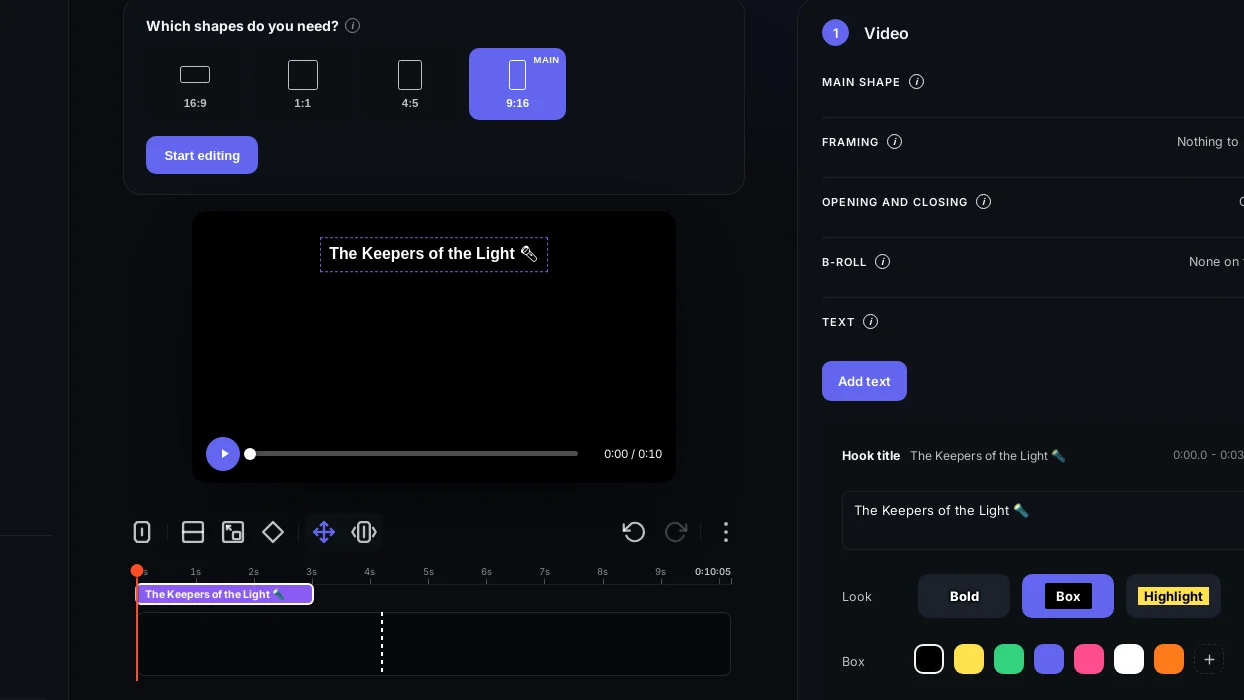
You can now build one Social clip in 9:16, 1:1, 4:5 and 16:9 at once, with each shape framed for its own screen.
What it is
Every shape of a clip gets its own framing. ScriptCut converts your wide recording to vertical automatically, finds the camera cuts, and inside each shot keeps the speaker in frame. You can adjust how closely the camera follows them, shot by shot, with Camera movement set to Calm, Normal or Active.
The problem it removes
A podcast or panel clip rarely has just one person talking at once. When two people are on screen and do not both fit in a vertical frame, Auto split screen gives each of them their own panel, centred on their face. Two people close enough together stay framed as one shot. On squarer shapes like 4:5 and 1:1, where a split panel would still hold both people, the frame follows whoever is talking instead, cutting cleanly between them if you turn Auto split screen off.
How it works, with an example
Say you have a two-person interview you want posted as a vertical reel, a square feed post and the original widescreen cut. ScriptCut reframes the 9:16 and 1:1 versions with Auto split screen on, giving each speaker their own panel when they are both in shot, while the 16:9 stays as recorded. If you decide one shot should instead focus only on the host, you frame that shot by hand, dragging it or picking who to follow, and that choice is never overridden by auto split.
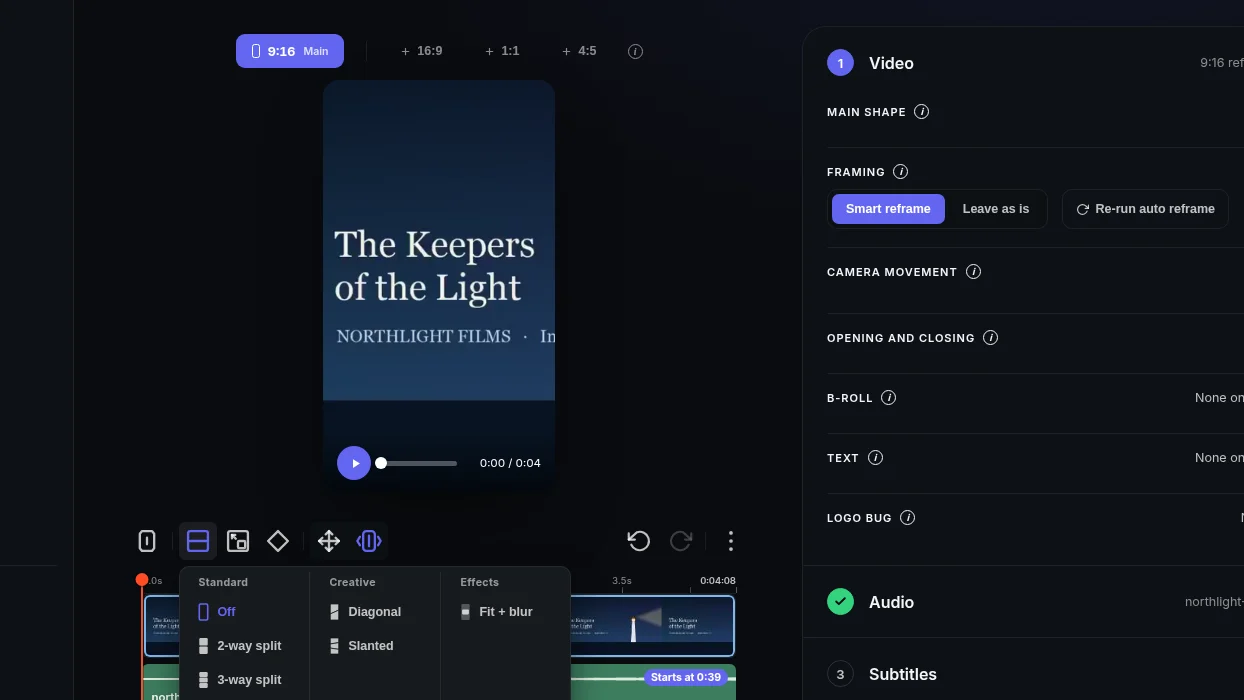
You are not limited to automatic framing. On any clip, single person or not, you can force a 2-way, 3-way or 4-way split screen from the Layout menu and drag each panel into place. Standard gives you plain rectangular panels, Creative gives you a diagonal 2-way split or slanted 3-way bands, and Effects includes Fit + blur, which shrinks the whole wide picture inside the frame over a blurred, darkened copy of the same video, a common look for putting a horizontal recording into a vertical post without splitting the screen. You can still move the Scale slider after applying it, from 0% to 160%, to punch in, shrink the picture to fit a 16:9 recording whole inside a vertical shape, or hide a shot entirely.
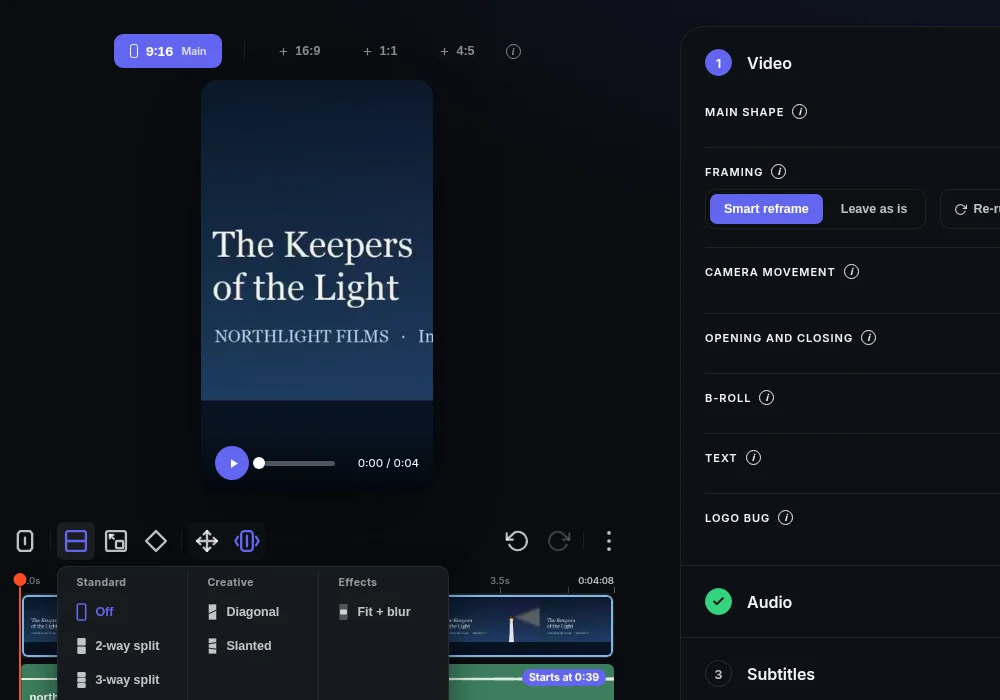
If you want to redo the automatic framing on one shot without touching the rest, right click it and choose Auto reframe clip. Every other shot keeps whatever framing you gave it.
Covers for every shape
Each shape also gets its own cover in the Cover step. Set one and use Same cover on all shapes to crop it to every other shape with the same title, font, colours and filter for free, or use Redraw for each shape to have the picture extended to fill each shape so nothing important is cropped out. You can still adjust any shape's cover on its own tab afterward.
Who this helps
Anyone turning a long recording, podcast, panel, interview or UGC shoot into posts for more than one network: an agency delivering a reel and a square post from the same sit-down, a podcast host clipping a two-person conversation for Stories and feed, or a marketer who needs the same moment in whatever shape each platform wants.
Try it on your next clip in ScriptCut.
frequently asked questions
A clip can be made in 9:16, 1:1, 4:5 and 16:9 at the same time, each with its own framing.
Auto split screen gives each person their own panel centred on their face, unless they are close enough to fit together in one shot.
On those shapes a panel would still hold both people, so the frame follows whoever is talking instead of splitting.
Yes. With it off, the frame stays on whoever is talking and cuts cleanly between speakers rather than panning or splitting.
No. Framing a shot by hand, by dragging it, setting keyframes, or picking who to follow, always wins and that shot is never auto split.
Yes. You can apply a 2-way, 3-way or 4-way split screen from the Layout menu to any clip and drag each panel into place.
Yes, but you can crop the same picture to every shape for free with Same cover on all shapes, or have it extended to fit each shape with Redraw for each shape.
More Product updates
Start selecting.

Pick the story in the transcript, export a finished rough cut and ready to post short form video.
What are you looking for?
Get the ScriptCut newsletter
Thanks! Check your inbox to confirm.
Something went wrong. Please try again.