
New feature
Remove Pauses Cuts Dead Air Automatically
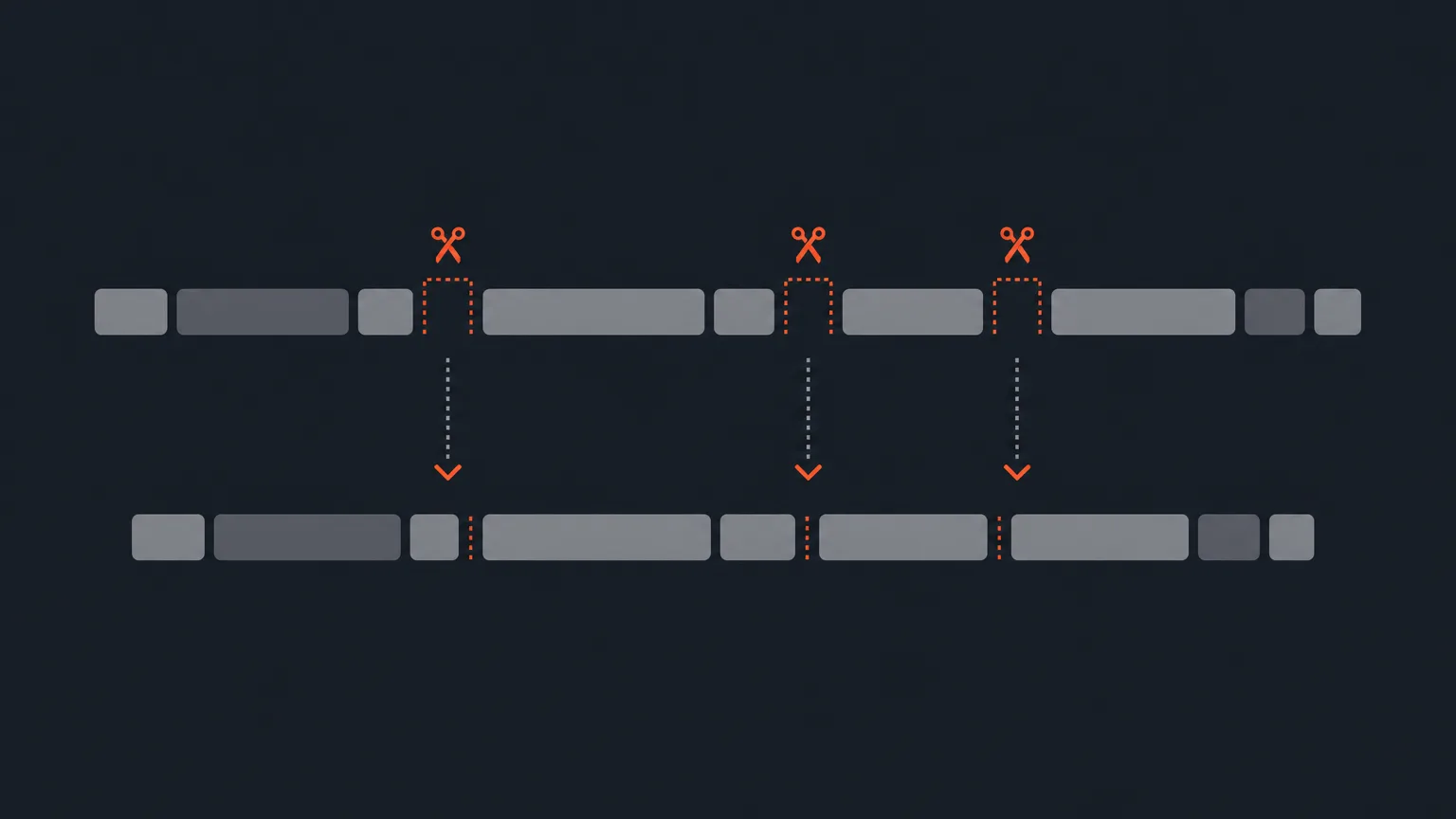
Remove Pauses scans your transcript for long silent gaps between words and cuts them for you, so you stop scrubbing through dead air by hand.
What it does
Remove Pauses lives in the Tools menu next to Manage speakers, Remove fillers and Check spelling. It uses the word-level timecodes behind your transcript to find gaps longer than a threshold you pick: 1s, 1.5s, 2s or 3s, with 2s as the default. Each gap shows up as a small chip, like '... 2.4s', so you can see exactly how long the silence ran before it gets cut.
The problem it removes
Unscripted recordings are full of pauses: someone collects their thoughts, checks a note, waits for a question. Hunting those gaps down one by one in a long transcript is slow, and cutting them by hand often leaves the result sounding clipped or robotic. Remove Pauses does the finding for you and always leaves half a second of natural silence in place, so the edit still sounds like a person talking, not a jump-cut reel.
How it works in practice
Say you are cutting down a 40-minute panel discussion. You run Remove Pauses with the default 2s threshold, and it turns up a dozen chips where a speaker paused to think or a question landed with dead air after it. You scan the chips, and if one of them was actually a meaningful beat, you click it to keep that pause. The rest get cut everywhere at once: in your edit, in playback, in your exports, and on the Social page if you are pulling clips from the same recording.
Reversible by design
Nothing here is permanent. Re-run the tool at any point, click a chip to keep that pause, or undo the whole pass if you change your mind. You can experiment with a tighter or looser threshold without worrying about losing your original pacing.
Who this helps
Anyone editing long unscripted recordings gets the benefit: podcast hosts tightening an episode, documentary editors trimming interview footage, agencies turning panel discussions into social clips, or marketers cutting UGC down to size. If your source has word-level timecodes, either transcribed directly in ScriptCut or imported from a word-level SRT or Premiere JSON file, Remove Pauses works on it.
Try it on your next recording in ScriptCut.
frequently asked questions
It is in the Tools menu, the grid icon, alongside Manage speakers, Remove fillers and Check spelling.
You pick the threshold: 1s, 1.5s, 2s or 3s, with 2s as the default, and anything longer than that shows up as a cuttable chip.
No, it never cuts back to back. Half a second of natural silence always stays so the result still sounds human.
Yes. Re-run the tool and click a chip to keep that pause, or undo the whole pass.
Yes, the cuts apply across your edit, playback, exports, and the Social page.
It needs word-level timecodes, which come from transcribing in ScriptCut or from importing a word-level SRT or Premiere JSON file.
No, it works on any long unscripted recording: podcasts, documentaries, vlogs, panels, UGC or talking-head footage.
Start selecting.

Pick the story in the transcript, export a finished rough cut.
Get the ScriptCut newsletter
Thanks! Check your inbox to confirm.
Something went wrong. Please try again.