
New feature
Project Versions: Save, Switch, Compare
You can now save a version of any project, keep editing, and go back to any earlier round whenever you want, without losing anything.
What it is
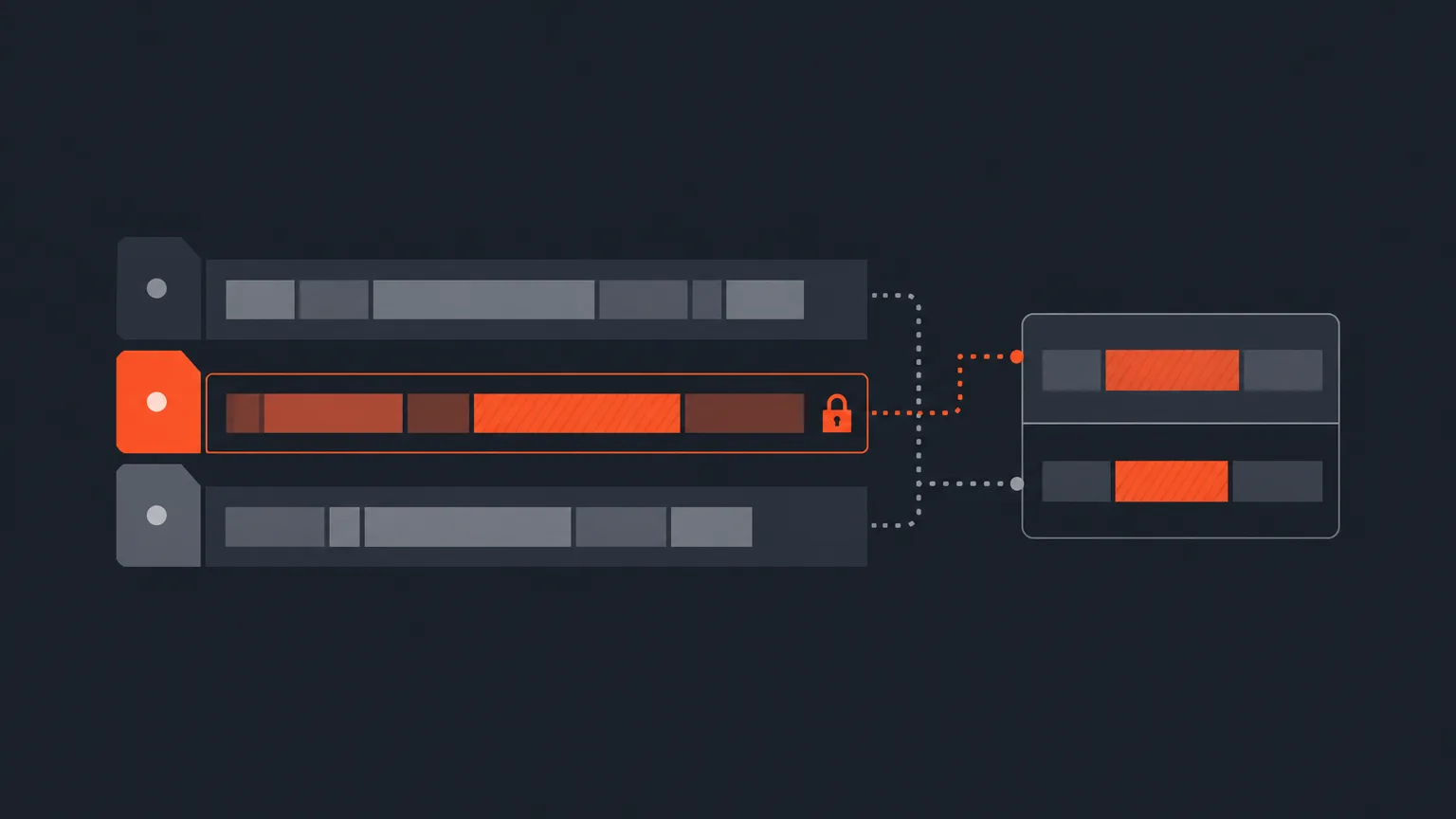
Every project now carries a version chip, labeled V1, on its project card and again in the editor header. Its dropdown lets you switch between versions, spin up a new one, delete a version you no longer need (you can never delete the last one), and lock a version or open it back up for editing.
The problem it removes
Before this, trying a different cut meant either overwriting your only copy or duplicating the whole project just to be safe. Now a new version is a copy that lets you explore a different edit without touching the one you already have. If a client approves a version, it locks automatically so nobody edits over their sign-off by mistake, and you can open it back up yourself if you need to keep working on it.
How it works in practice
Say you have cut a podcast episode down to a tight 20 minute story for a client, and the client wants to see a longer 35 minute alternative before deciding. Instead of building that from scratch or risking your tight cut, you create a new version from the V1 chip in the header. Work on the longer cut in that version, switch back to the original with one click, and use Compare versions to see a redline of exactly what changed: lines added, removed, reordered, or given a different priority in Select and Arrange.
Who it helps most
This helps anyone who works through rounds of client feedback: agencies presenting alternate cuts, podcast editors testing a shorter versus longer edit, or documentary teams keeping a rough assembly separate from a polished one. It also matters for social clips, since Create Social Clips always pulls from a specific version, so knowing exactly which version you are pointing at keeps your clip batches predictable.
Try it
Open a project in ScriptCut and save your first version before your next round of edits.
frequently asked questions
No. A new version is a copy, so your existing cut stays exactly as it was while you explore the alternative.
Yes, any version except the last one. ScriptCut always keeps at least one version of a project.
The approved version locks automatically so it can't be edited by accident. The owner can reopen it later to keep working on it.
Open Compare versions from the version dropdown. It shows a redline of what was added, removed, reordered, or had its priority changed in Select and Arrange.
That depends on your Client view settings. You can choose to let clients open earlier rounds or restrict them to only the version you sent.
It uses whichever version is open when you run it, and the dashboard asks you to confirm which version, with the latest preselected.
No. A social clips copy is a snapshot of the version it came from and won't change if you keep cutting the original.
Start selecting.

Pick the story in the transcript, export a finished rough cut.
Get the ScriptCut newsletter
Thanks! Check your inbox to confirm.
Something went wrong. Please try again.