
New feature
Keyframes for Smooth Camera Moves
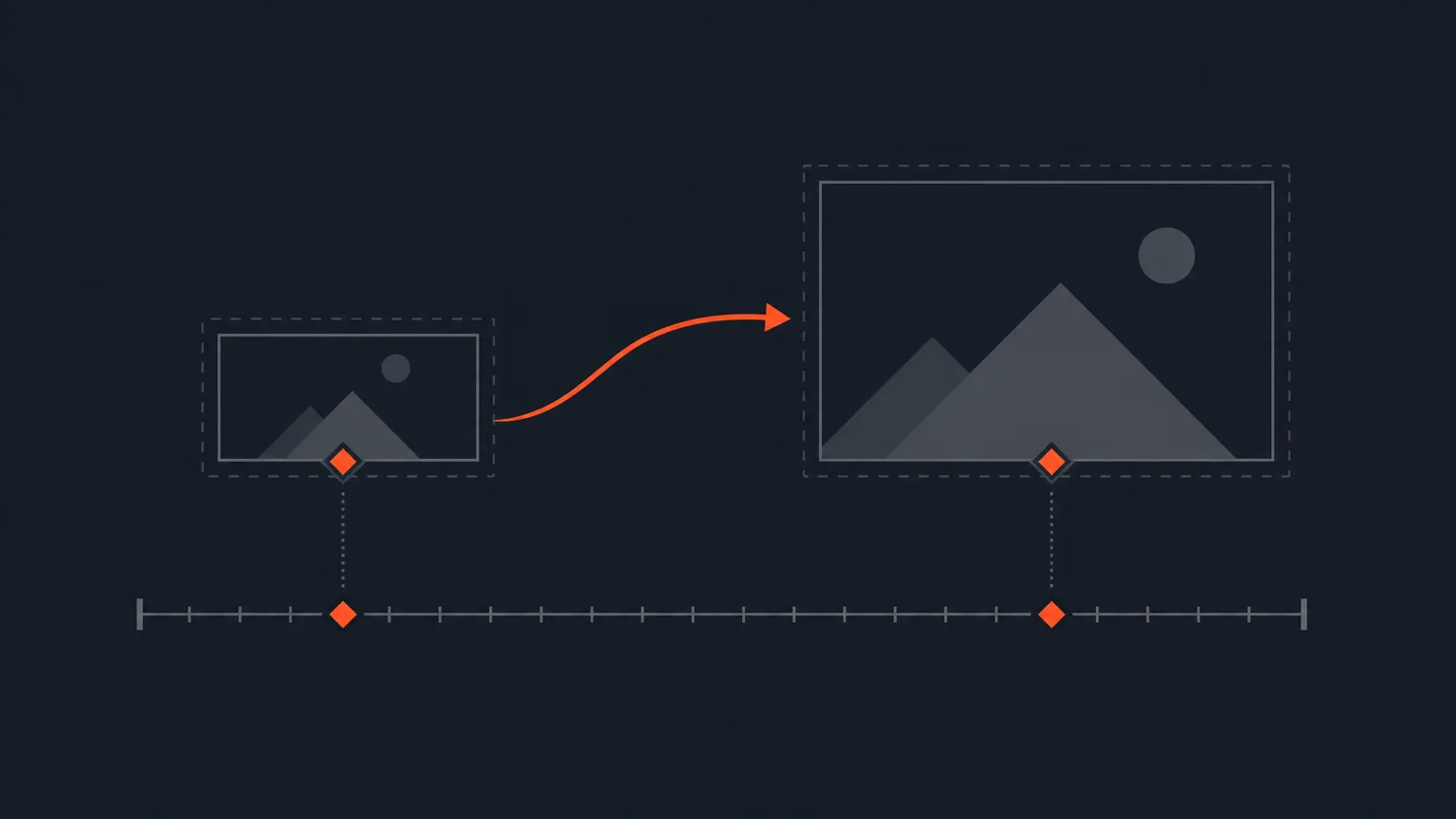
You can now set the framing at two moments in a shot and ScriptCut moves the camera smoothly between them, instead of holding one static frame.
What it is
Keyframes live in the Video step of the social clip editor, where ScriptCut has already converted your wide recording to vertical (or square, 4:5, or 16:9) and framed each shot around the speaker. Until now, each shot had one framing for its whole length. Keyframes let you lock in a framing at one point, move to another point in the same shot, adjust the framing again, and ScriptCut animates the move between the two.
The problem it removes
A single fixed frame per shot works for a lot of footage, but not all of it. If your speaker walks across a stage, gestures toward a product on a table, or a group shot needs to open wide and then push in on whoever starts talking, a static frame either cuts them off or leaves too much dead space. Before keyframes, fixing that meant splitting the shot into extra cuts just to change the framing, which adds clutter to your timeline.
How it works
Move the playhead to the point in the shot where you want a framing change, adjust the frame, and press K to set a keyframe there. Move to another point, adjust again, press K again. ScriptCut fills in the movement between the two automatically. If you need to remove one, select the keyframe and press Delete. Use + and - to zoom the timeline in and out while you work, and C if you also need to add a cut. Say you're cutting a product demo where the host picks up a coffee bag mid-sentence: keyframe the wide shot at the start, keyframe a tighter frame on the bag once she lifts it, and the camera eases in right on cue instead of jumping.
Who it helps
Anyone turning a recording into a social clip where the subject moves or the story needs a push in or pull out: podcast hosts holding up a product, agencies cutting demo footage, documentary editors following a subject across a room, or marketers who want a clip that feels shot with a moving camera instead of a locked frame.
Set your framing at two points and let ScriptCut do the move in ScriptCut.
frequently asked questions
In the Video step of the social clip editor, move the playhead to the point in a shot where you want a framing change and press K.
Select it on the timeline and press Delete, or press K again while it's selected.
No. Keyframes only change the framing inside a shot. Cuts are added separately with C.
Yes, each panel in a split screen is dragged, zoomed and re-timed like any other framing, so keyframes work on it the same way.
Yes, what you see in the preview is exactly what renders, including any keyframed camera movement.
Yes, every change including keyframes can be undone and redone.
Right-click the shot and choose Reset selected clip to put its framing back to fully automatic without touching its cuts, trim, or captions.
Start selecting.

Pick the story in the transcript, export a finished rough cut.
Get the ScriptCut newsletter
Thanks! Check your inbox to confirm.
Something went wrong. Please try again.