
New feature
Introducing Clients In Social
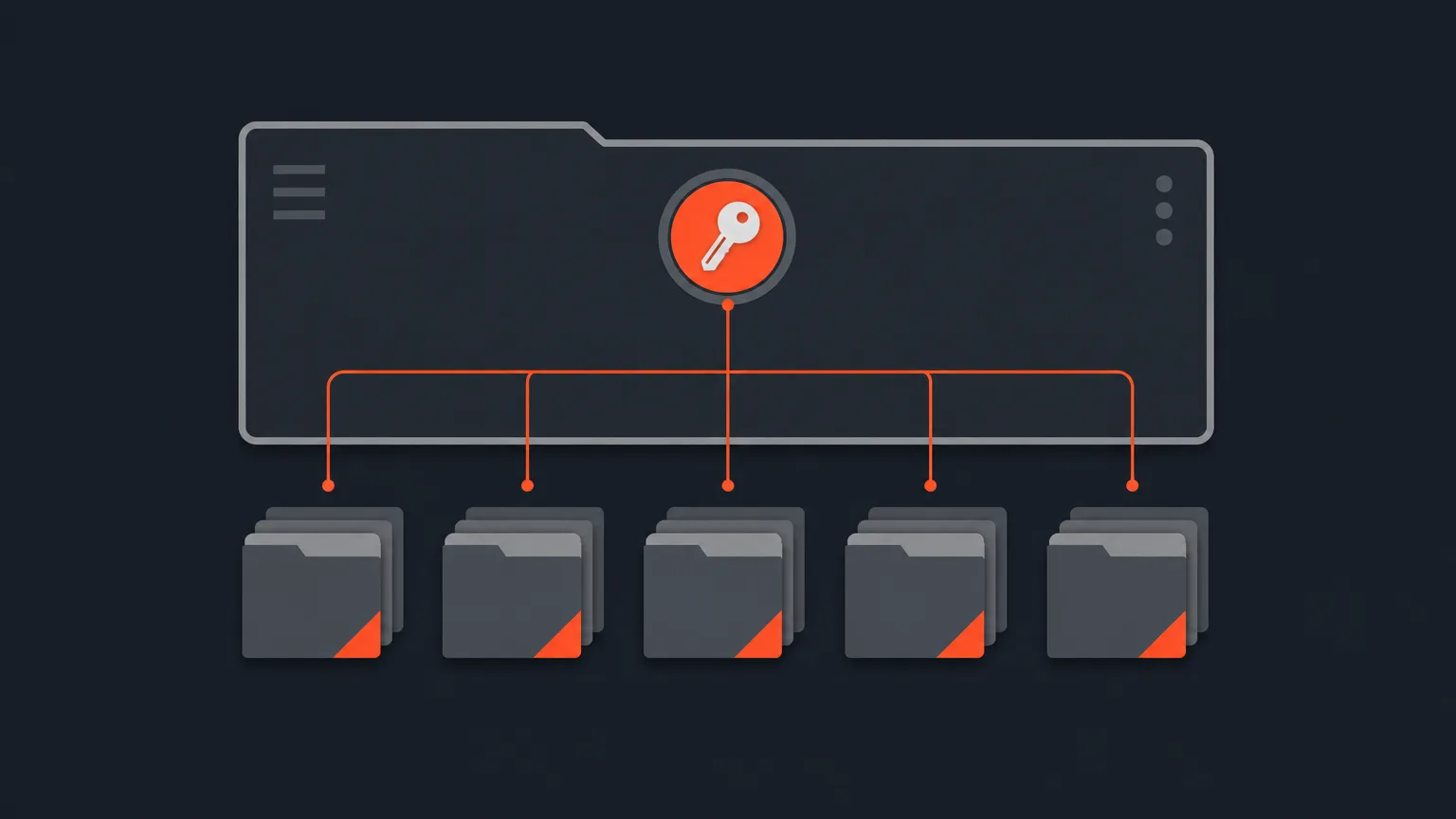
Clients is a new way to group everything you make for one person or brand under a single set of rules, links and files.
What It Is
A client lives in Social, not on the main dashboard. You create one from the Social Clips page or the Accounts page, give it a name and, if you want, a thumbnail you can drag and zoom to frame. Once a client exists, it unlocks the whole client side of Social: the Client kit, the Client link, the client password and the Client access switch all live there.
A client is different from a folder. A folder is only for tidying: it groups projects together and carries nothing else. A client carries the rules. Any project you file under a client, including projects sitting inside a campaign folder within it, starts from that client's own settings.
The Problem It Removes
Without a client, every project you build for the same person is its own island. You end up resetting the same rules, resending the same kind of link and hunting for the same files project after project. Clients means you set the rules once and every new project for that person just inherits them.
How It Works
Say you run an agency and one of your accounts is a coffee brand. You create a client called Coffee Brand once. Every campaign you build for them afterwards, whether it is a podcast cutdown or a batch of talking head clips, lives under that one client and shares its Client kit, Client link, password and access switch. You are not rebuilding any of that per project.
You do not have to start clean either. If you already had a folder full of projects for that same coffee brand, the same New client window can turn that folder into a client and everything already inside it comes along with it.
One rule to know: a client is always top level. You cannot put one client inside another, because a single clip cannot follow two different sets of creative rules at once.
Who It Helps
This is built for anyone juggling recurring work for the same people: agencies with retainer accounts, producers running a show for one host across many episodes, or a marketer managing one brand's content pipeline. If you only ever handle one-off projects with no one to answer to, nothing changes for you. Keep using projects and folders exactly as before.
And if you had already set folders up as makeshift clients before this feature, nothing breaks. They are still clients, and every link you already sent keeps working.
Ready to set one up? Head into ScriptCut and create your first client from the Social Clips page.
frequently asked questions
In Social, either press New Client at the top of the Social Clips page or New client on the Accounts page.
A folder only groups projects together and carries nothing else. A client carries the Client kit, Client link, client password and Client access switch, and every project inside it starts from those rules.
Yes. The same New client window lets you pick a folder you already have, and everything already inside it becomes part of the new client.
No, a client is always top level, since one clip cannot follow two different sets of creative rules at once.
Yes. If you had folders set up like clients before this feature, they are still clients and every link you already sent keeps working.
No. If you have no clients to answer to, you can keep using projects and folders exactly as before and nothing changes.
Yes, when you create a client you can optionally add a thumbnail and drag and zoom it to frame the way you want.
Start selecting.

Pick the story in the transcript, export a finished rough cut.
Get the ScriptCut newsletter
Thanks! Check your inbox to confirm.
Something went wrong. Please try again.