
New feature
Import Media From Dropbox, Drive And Frame.io
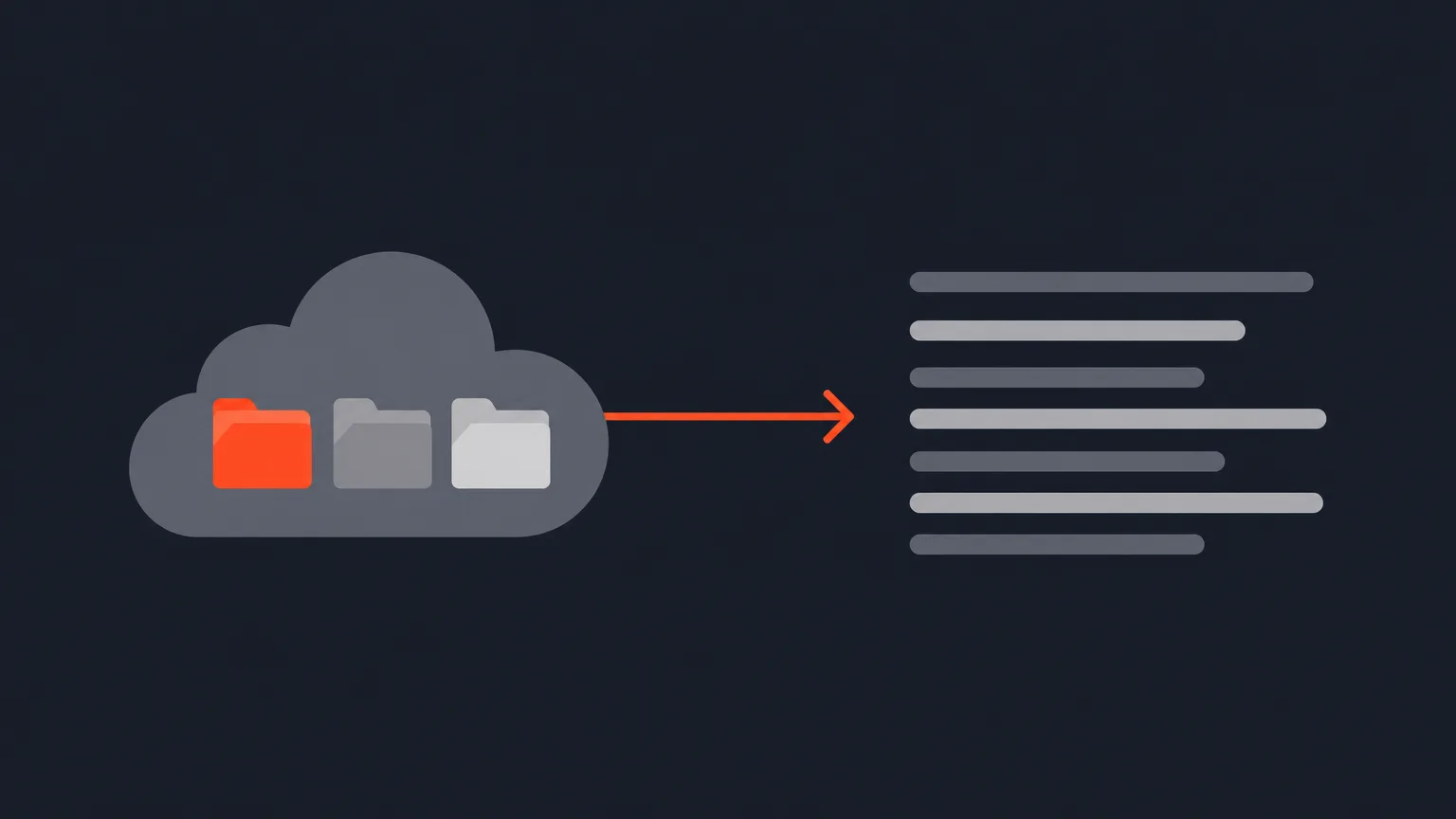
You can now bring a recording into ScriptCut straight from Dropbox, Google Drive or Frame.io, without downloading it to your computer first.
What It Is
ScriptCut now connects to Dropbox, Google Drive and Frame.io as import sources. Once you connect a service, it shows up as an option in every media import step: New Project, Transcribe, and Social. Media still only comes from your computer or from a connected account, there is no way to import from a pasted web link such as a YouTube, Vimeo or Zoom page, or a shared Dropbox link.
The Problem It Removes
If your recordings live in the cloud, the old path was slow: download the file to your machine, then upload it into ScriptCut, twice the wait for a file that never needed to touch your hard drive. For a long documentary master or a big Frame.io export, that round trip can eat a lot of time on a slow connection.
How It Works
Connect a service once in Settings > App Integrations. From then on, any media import step in ScriptCut offers it as a source:
- Frame.io: browse Account, Workspace, Project and folders to pick a video.
- Dropbox: browse folders, including Team and Business accounts, and use the search bar to jump straight to a folder by name.
- Google Drive: browse folders, see a real preview thumbnail on each video file, and search by folder name.
Inside the Social editor, the same connection powers the Media Gallery's Upload window: pick From Cloud instead of From your Computer, and the file goes straight from your storage to ScriptCut's, never through your browser. Say an agency keeps a client's raw panel recording in a shared Google Drive folder. Instead of downloading a large file and uploading it again, the editor connects Drive once, browses to the folder, and picks the video directly from the New Project screen.
Who It Helps
Anyone whose source recordings live outside their own laptop feels this the most: agencies pulling client footage from a shared Frame.io project, podcast teams whose raw audio and video sit in Dropbox, and marketers or documentary editors who store masters in Google Drive. Any of ScriptCut's long, unscripted recordings, podcasts, panels, vlogs, interviews, talking-head or UGC, can start straight from the cloud instead of a local download.
Connect your storage and start your next project straight from the cloud in ScriptCut.
frequently asked questions
Dropbox, Google Drive and Frame.io, once you connect them in Settings > App Integrations.
No. Media only comes from your computer or from a connected Dropbox, Google Drive or Frame.io account, not from a pasted web link.
No, you connect it once in Settings > App Integrations and it then appears as a source in every media import step, including New Project, Transcribe and Social.
Yes, Dropbox import supports Team and Business accounts, and you can use the search bar to jump straight to a folder by name.
Yes, Google Drive video files show a real preview thumbnail while you browse, and you can search for a folder by name.
No, when you import from Dropbox, Google Drive or Frame.io the file goes straight from your storage to ScriptCut's, which helps a large file import fine even on a slow connection.
The import window shows a Connect option for that service and takes you to Settings > App Integrations to link it.
Start selecting.

Pick the story in the transcript, export a finished rough cut.
Get the ScriptCut newsletter
Thanks! Check your inbox to confirm.
Something went wrong. Please try again.