
New feature
Export Your Cut To Avid Media Composer
You can now export a ScriptCut selection as a Timeline (XML) and open it directly in Avid Media Composer.
What It Is
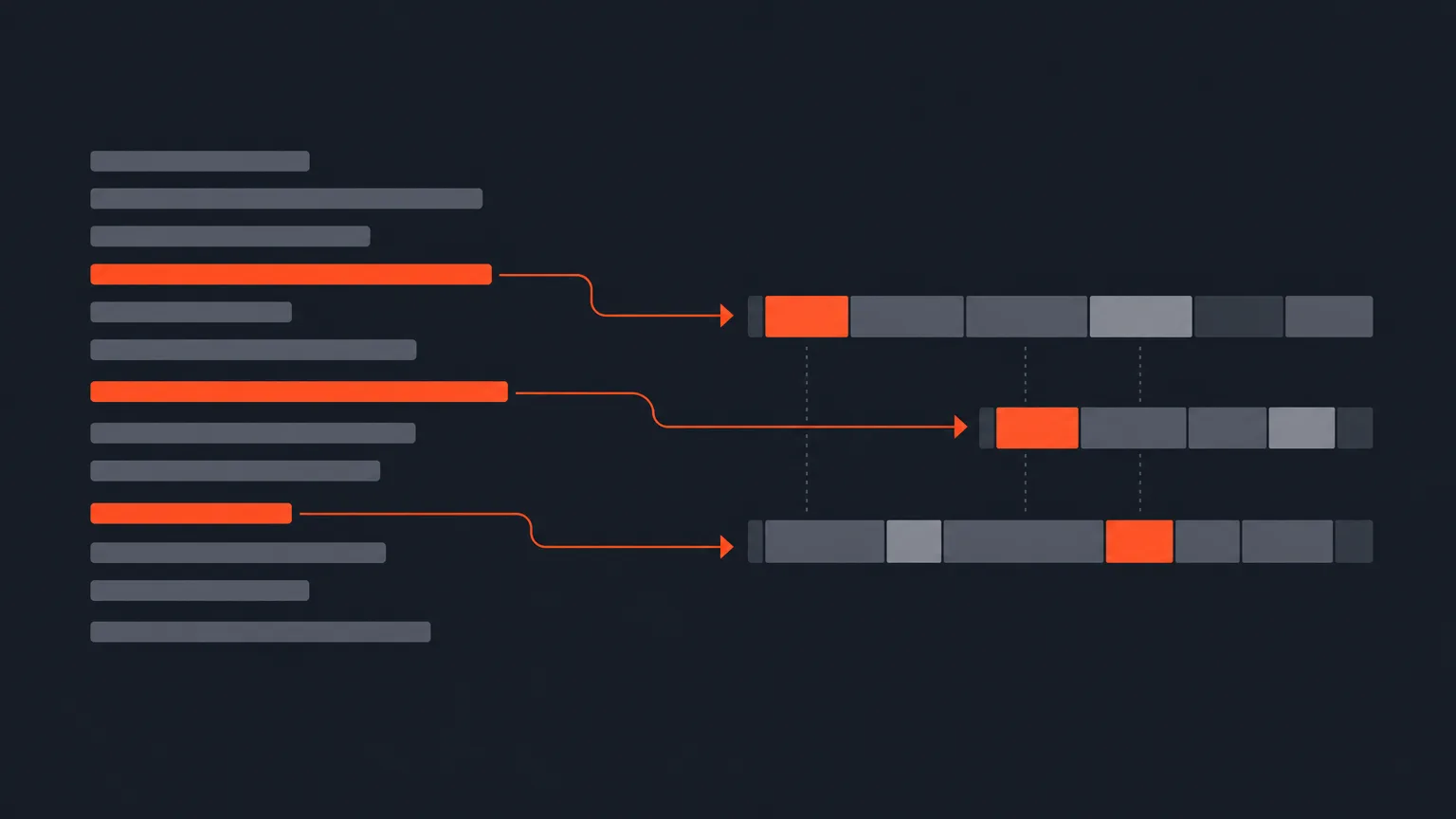
ScriptCut's Timeline (XML) export already worked with DaVinci Resolve and Premiere Pro. It now opens in Avid Media Composer too, along with Final Cut Pro. Pick your best lines in ScriptCut, then bring that exact selection into Avid without retyping in and out points.
The Problem It Removes
Editors who cut in Avid used to have to watch or skim a full recording again just to find the good parts, then rebuild the selects by hand. That's slow and easy to get wrong, especially on long interviews, panels, or raw documentary footage. The transcript-first pick happens in ScriptCut, and Avid gets a timeline that already reflects it.
How It Works
Say you're cutting a 90 minute panel discussion. In ScriptCut, you read the transcript, mark the strongest answers, clean up false starts, and arrange the story on Review. When it's ready, open Export and choose Timeline (XML). ScriptCut rebuilds your selection in order, trimmed to the frame, with your groups turned into markers. Import that XML into your Avid project and the sequence matches your ScriptCut cut exactly, ready to finish.
If the project started as a transcribed recording in ScriptCut, the timeline is built from that file's own timecode. If you're doing a roundtrip on footage that started in Avid, attach the timeline XML on import so the selection lines up frame-exact with your original media.
Getting Started In Avid
There's no dedicated guided workflow for Avid in the New Project picker yet, that's coming. For now, start your ScriptCut project from Blank if you're bringing in an existing transcript, or from Transcribe if you're starting from a recording. Do your selection and cleanup as usual, then export the Timeline (XML) into Avid.
Who This Helps
This is for editors and agencies who cut long, unscripted footage, podcasts, panels, documentaries, talking-head interviews, UGC, in Avid Media Composer. It also helps producers who want to hand off a clean, client-approved selection to an Avid editor without sending timecode notes back and forth.
Try it on your next project in ScriptCut.
frequently asked questions
Not yet. The New Project picker's guided start-here path for Avid is coming soon, but the Timeline (XML) export works with Avid today.
Start your project from Blank or Transcribe, do your selection and cleanup on Review, then open Export and choose Timeline (XML) to bring it into Avid.
Yes, it rebuilds your selection in order, trimmed to the frame, and turns your groups into markers.
No, there is no plugin for Avid or Final Cut Pro right now, so the timeline moves by export and import.
Yes, attach the timeline XML on import and your selection lines up frame-exact with the original footage.
The timeline is built from that file's own timecode, so you don't need to attach anything separately.
No, it works for any long, unscripted recording you cut in ScriptCut, including podcasts, documentaries, panels, vlogs, and UGC.
Start selecting.

Pick the story in the transcript, export a finished rough cut.
Get the ScriptCut newsletter
Thanks! Check your inbox to confirm.
Something went wrong. Please try again.