
New feature
Auto Reframe Follows Every Speaker
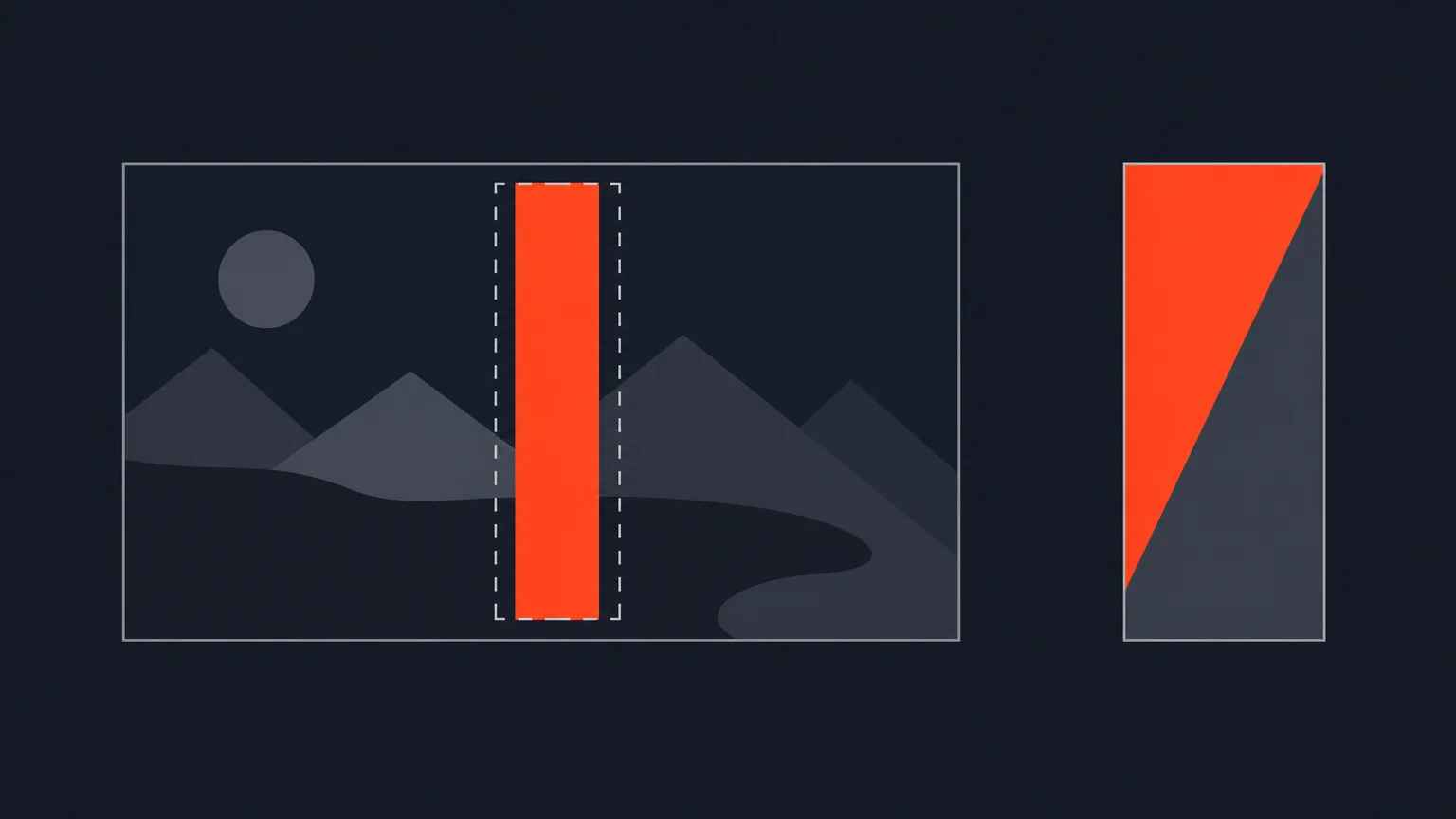
Auto Reframe turns a wide recording into a vertical clip that follows the speaker cut by cut, and lets you adjust any shot by hand.
What It Does
In the Video step, ScriptCut converts your wide recording to vertical (9:16, with 1:1, 4:5 and 16:9 also offered). It detects each camera cut in the source, then frames and follows the speaker inside every shot automatically. You get a clip that already looks like it was shot for a phone, without lining up a single crop yourself.
The Problem It Removes
Reframing a long recording shot by shot, by hand, is slow. A panel discussion or a documentary interview can have dozens of cuts, and each one needs its own crop to keep the speaker in frame. Auto Reframe does that first pass for you, so you start from a working vertical edit instead of a blank canvas.
Adjust Any Shot
The automatic pass is a starting point, not the final word. Per shot, you can:
- Set Camera movement to Calm, Normal or Active
- On a multi-person shot, choose Layout: Track speaker, Keep both in frame, or Split screen
- Zoom in on any shot
- Add or remove cuts, drag a cut or stitch point a frame at a time, and set keyframes
Say a coffee brand records a three-person panel in wide format. Auto Reframe follows whoever is talking through most of the clip, but on one shot where two guests talk over each other, you switch that shot's layout to Split screen so both stay visible.
Split Screen, Two Ways
You can force a 2-way, 3-way or 4-way split screen on any clip, even one with a single person in frame, and drag each panel into place. The Split screen menu has two columns: Standard gives you plain rectangular panels, and Creative gives you shaped ones, including a diagonal 2-way split and slanted 3-way bands. Every panel, rectangular or shaped, is dragged, zoomed and re-timed the same way, and the finished export is cut to the exact shapes shown in the preview.
Fix One Shot Fast
If a shot's framing gets away from you, right-click it and choose Reset selected clip. That puts just its framing back to fully automatic, without touching its cuts, trim or captions, so you never have to redo the whole clip to fix one bad crop.
Who It Helps
This is for anyone turning long recordings into vertical social clips: podcast hosts pulling highlight reels, agencies repurposing panels and webinars, documentary and UGC editors, and marketers who need a talking-head clip for stories or reels without opening a separate editor. What you see in the preview is exactly what renders, so approval and export stay fast.
Try Auto Reframe in ScriptCut.
frequently asked questions
It converts wide video to vertical 9:16 by default, and also offers 1:1, 4:5 and 16:9.
On a multi-person shot you can choose Track speaker, Keep both in frame, or Split screen as the layout.
Yes, you can force a 2-way, 3-way or 4-way split screen on any clip, even a single-person one, and drag each panel into place.
Standard panels are plain rectangles, while Creative panels are shaped, including a diagonal 2-way split and slanted 3-way bands. Both types are dragged, zoomed and re-timed the same way.
Yes, you can add or remove cuts, drag cuts or stitch points frame by frame, set keyframes, and undo or redo every change.
Right-click the shot and choose Reset selected clip to put just its framing back to fully automatic, without touching its cuts, trim or captions.
It is part of the Social suite, available on ProAI, trial and beta accounts.
Start selecting.

Pick the story in the transcript, export a finished rough cut.
Get the ScriptCut newsletter
Thanks! Check your inbox to confirm.
Something went wrong. Please try again.