
New feature
AI Arrange Orders Your Selected Lines
AI Arrange takes the lines you've already selected and puts them in the order that tells the best story, so you stop dragging clips around trying to find the right sequence.
What it is
AI Arrange works on your picks. You choose the lines from the transcript, whether by hand or with AI Select or AI Story, and Arrange decides the order they should play in. It doesn't add lines, cut lines, or decide how long the piece should be. That decision happens earlier, in AI Select or AI Story. Arrange only orders what's already on the page.
The problem it removes
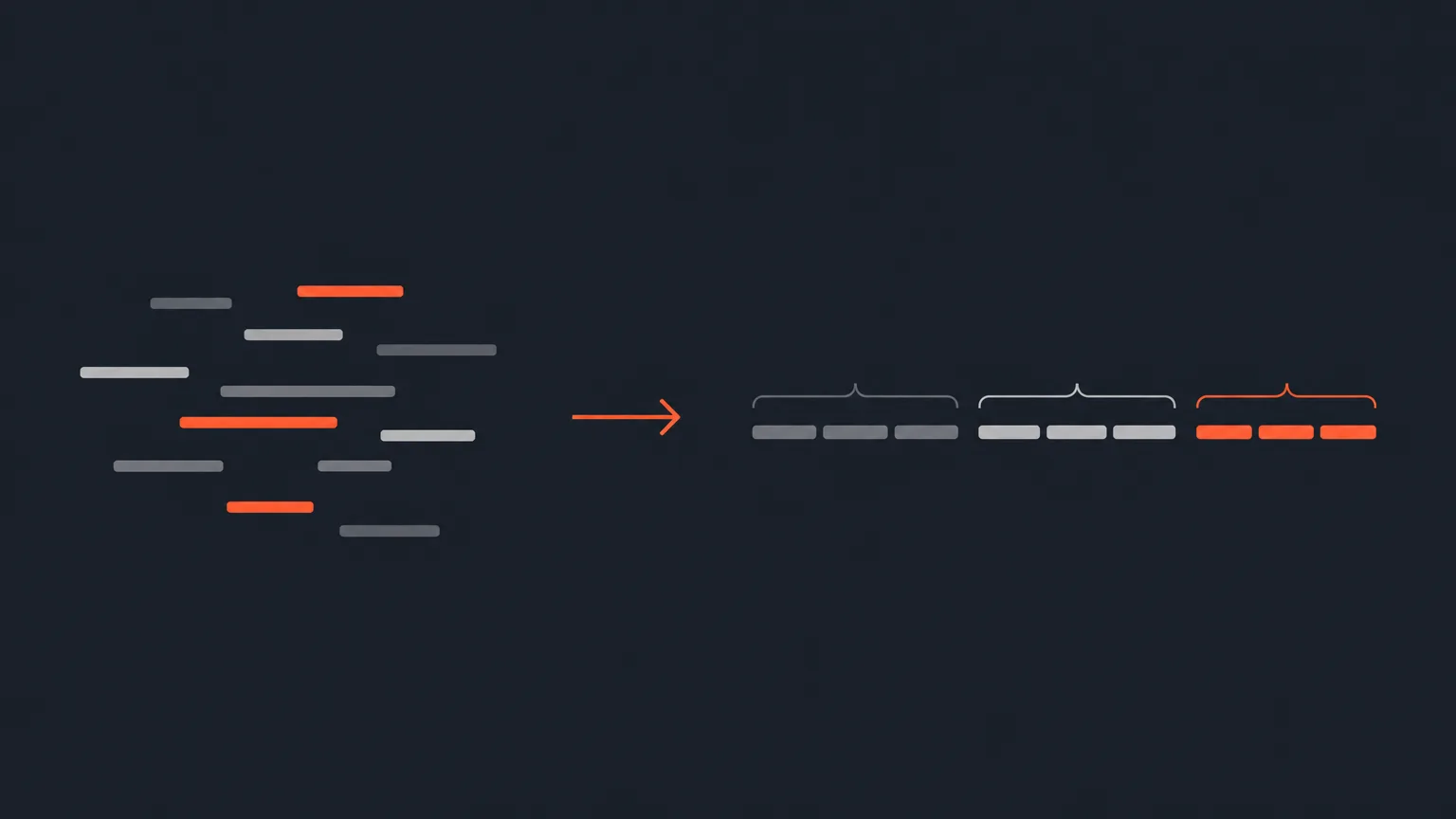
Once you've picked good lines from a long recording, you're left staring at a pile of them, trying to figure out which one opens, which one builds, and which one lands the point. That reordering is slow and easy to get wrong, especially on a panel discussion or a long interview with lines pulled from all over the timeline. AI Arrange does that pass for you and can also group the lines into titled acts, so a long piece reads like it has a beginning, middle, and end instead of a flat list.
How it works in practice
Say you're cutting a panel discussion for a coffee brand's podcast. You've pulled twenty strong lines from three speakers, scattered across a two hour recording. Dropped in as-is, they don't flow. Run AI Arrange and it sequences those same twenty lines into a story, grouping them into acts like 'The Problem,' 'What Changed,' and 'What's Next.' You still have every line you picked, just in an order that actually makes sense to a viewer.
Who it helps most
Anyone working from a long, unscripted recording where the good lines don't come out in story order: podcast editors cutting a roundtable, documentary editors working from hours of interview footage, agencies turning a brand founder's rambling answers into a clean narrative, or a marketer building a highlight reel from a panel. If your selected lines need a shape, not just a trim, this is the step for that.
Trying it and access
AI Arrange is one of the AI features that comes with ProAI, along with AI Cleanup, AI Select, AI Story, AI Clips, custom branding, and the high-quality stereo audio export. If your account doesn't have AI yet, whether that's Free, Starter, or a lapsed plan, you get one free run of AI Arrange to try it on a real project, no AI credits spent. You'll see a '1 free run' badge on the AI row until you use it, then a padlock that opens the plan picker if you want more.
Pick your lines, then let ScriptCut put them in order.
frequently asked questions
No. It only orders the lines you've already selected. Choosing which lines make the cut happens in AI Select or AI Story.
No, AI Arrange has no target length. Length is set earlier in AI Select or AI Story, and Arrange just sequences what's already selected.
When it helps the story, AI Arrange groups your ordered lines into sections with titles, giving a long piece a clear beginning, middle, and end.
ProAI includes AI Arrange along with the other AI features, custom branding, and high-quality audio export. Free and Starter accounts get one free run of AI Arrange to try it.
If your account has no AI plan of its own, you get one free run of each AI module, including AI Arrange, on a real job with no AI credits spent. It's once per account, not once per project, and the badge on the AI row disappears once you've used it.
It works on lines selected from any long unscripted recording, panels, documentaries, vlogs, UGC, or interviews, not just interviews.
Start selecting.

Pick the story in the transcript, export a finished rough cut.
Get the ScriptCut newsletter
Thanks! Check your inbox to confirm.
Something went wrong. Please try again.