
New feature
Add Music Beds To Social Clips
Social clips can now carry a music bed under the voice, set to the right level automatically, so you never have to guess how loud is too loud.
What it is
Music is the last section of the Video step in the Inspector, the panel of numbered steps on the right of the Social clip editor. Add a track with the same Upload and Add from Gallery buttons you already use for B-roll, then press Use on one or drag it straight onto the timeline.
The problem it removes
Balancing a music bed against speech usually means adding a track, rendering, listening, adjusting, and rendering again. ScriptCut measures the level from the track itself and sets it to sit under ordinary speech from the start, with a slider if you want to move it. The voice is never turned down to make room for the music. You hear the bed in the preview at the exact level, loop and fade-out it will have in the finished file, so nothing about it has to be judged by rendering first.
How it works
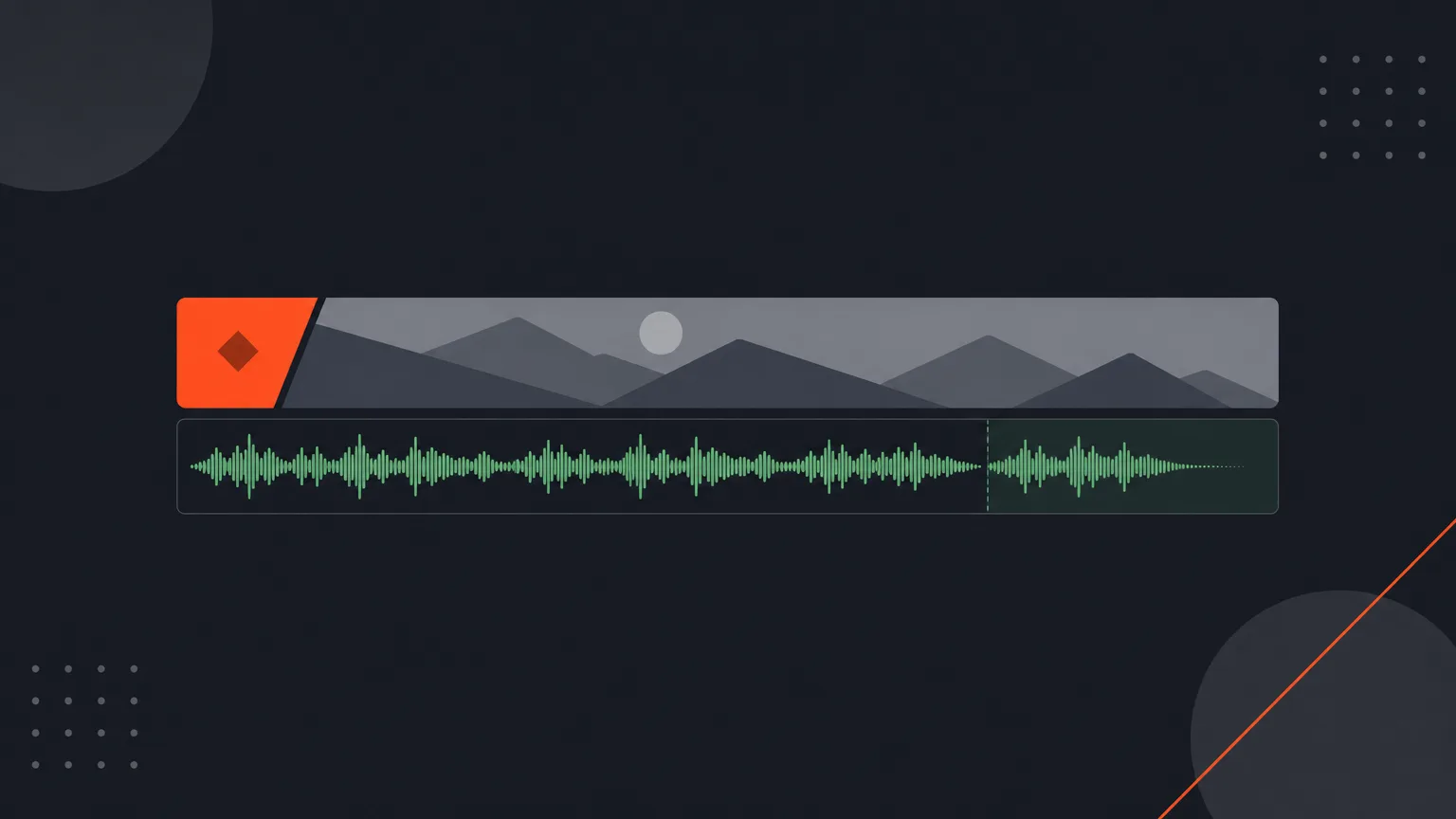
Once a track is added, it appears as a green audio track under the video on the timeline, drawn from the file's own waveform. It starts at the top of the clip, runs the clip's whole length, repeats if it is shorter than the clip and fades out at the end. It lines up with the picture second for second, so a 20-second clip shows 20 seconds of the track, not the whole song.
Say a coffee brand's 15-second product clip needs a light bed under the voiceover. You drag a track from the gallery onto the timeline, a green row opens under the clips, and the music starts playing in the preview right where the clip starts, already sitting under the voice. If you want the bed to start somewhere else in the song instead of the top of the file, switch the toolbar above the timeline to Timing and drag the green track, or nudge it with the arrow keys. The waveform slides with it so you can see which part of the song you're choosing, and a purple chip counts the frames, the same way it does when you re-time a shot. The picture itself never moves. If the track is shorter than what's left, it wraps to its own beginning rather than going silent, and the Music section shows where it starts with one click to reset it to the top.
To remove a track, click it to select it, then press Delete or right-click and choose Remove music. Adding music never re-encodes the video, and it plays only under the clip itself, not under a client's opening or closing video.
Who it helps most
Anyone turning long recordings into social clips: podcast hosts building teasers, agencies cutting client highlight reels, marketers making product clips, vloggers adding a bed under a talking-head cut. If you've ever needed a music track to sound right without rendering three times to check, this is for you.
Try it in ScriptCut.
frequently asked questions
No. The level is measured from the track itself and set to sit under ordinary speech automatically, and the voice is never turned down to make room.
Yes. The bed plays in the preview alongside the picture at the exact level, loop and fade-out it will have in the finished file.
It repeats to fill the clip's length, and fades out at the end.
Yes. Switch the toolbar above the timeline to Timing, then drag the green music track or nudge it with the arrow keys to start the bed on a different moment. The picture itself never moves.
Click the green track to select it, then press Delete, or right-click it and choose Remove music.
No. Adding music never re-encodes the video, so it's picture-safe.
No, it plays only under the clip itself, not under any opening or closing video.
Start selecting.

Pick the story in the transcript, export a finished rough cut.
Get the ScriptCut newsletter
Thanks! Check your inbox to confirm.
Something went wrong. Please try again.