
New feature
A Real DaVinci Resolve Panel
ScriptCut now has a panel that lives inside DaVinci Resolve Studio, so you can send clips over and pull your finished cut back already linked to the real media.
What it is
This is a dedicated panel for DaVinci Resolve Studio on Mac. You download it from Settings > App Integrations, in the NLE Plugins section, alongside the Premiere Pro panel. Once it's paired, ScriptCut and Resolve talk to each other directly instead of you moving files back and forth by hand.
The problem it removes
Normally, bringing a ScriptCut timeline into your editor means exporting a Timeline (XML) and then relinking every clip to your footage yourself. That works fine, but it's a chore, especially on a project with a lot of clips. The Resolve panel skips that step: the timeline opens already relinked to the actual media on your machine.
How it works
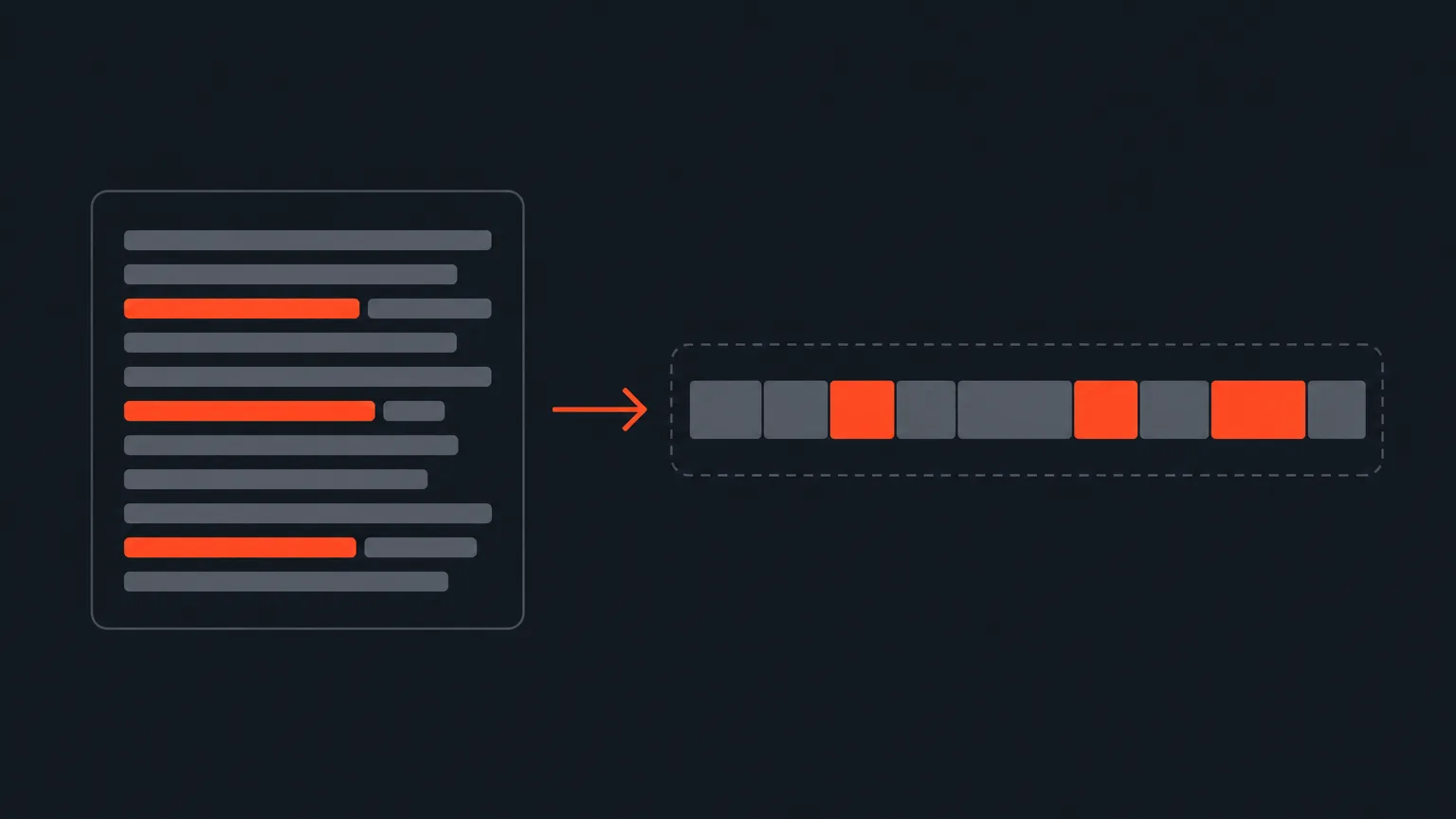
Say you're cutting a panel discussion. You transcribe the recording in ScriptCut, pick the best lines, arrange the story, and get it approved. Instead of exporting and manually relinking, you open the paired panel in Resolve and bring the cut straight in. Your selects show up trimmed to the frame, in order, with your footage attached, ready to finish grading and mixing.
If you're exporting subtitles from Resolve to bring word-level timecodes into ScriptCut, remember to set Maximum to 1 character per line, Lines to Single, and check Include Speaker Name. That's what gives ScriptCut a timecode for every word instead of whole sentences, which matters if you want tools like Remove Pauses to work cleanly.
Who it helps
This is for editors and agencies who already live in DaVinci Resolve Studio and want their ScriptCut selects to land in their timeline without extra relinking work. It's available on the Starter and ProAI plans, not on Free or the Social plan.
What about other editors
ScriptCut's Timeline (XML) export works in DaVinci Resolve, Premiere Pro, Final Cut Pro, and Avid Media Composer today, so all four are supported. The dedicated panel with automatic relinking currently exists for DaVinci Resolve Studio (Mac) and Premiere Pro 2025+ (Mac and Windows). A guided start-here workflow for Final Cut Pro and Avid is on the way; until then, those editors work great from Blank or Transcribe with an exported XML.
Ready to skip the manual relink? Pair the panel in ScriptCut.
frequently asked questions
No, the DaVinci Resolve panel requires DaVinci Resolve Studio on a Mac. Windows isn't supported yet for this panel.
Go to Settings > App Integrations and look for the NLE Plugins section, which has a Download button for DaVinci Resolve alongside one for Premiere Pro.
NLE panels, including DaVinci Resolve, are available on Starter and ProAI. They're not included on Free or the Social plan.
A normal Timeline (XML) export still works in Resolve, but you relink footage yourself. With the panel paired, the cut opens already relinked to your real media.
Yes. If you're bringing word-level timecodes into ScriptCut from Resolve, set Maximum to 1 character per line, Lines to Single, and check Include Speaker Name.
Yes, the Timeline (XML) export works in Final Cut Pro and Avid Media Composer today. Those two don't have a dedicated panel or guided start-here workflow yet, but that's coming.
Yes, there's a matching panel for Premiere Pro 2025 or newer, working on both Mac and Windows, downloaded from the same NLE Plugins section.
Start selecting.

Pick the story in the transcript, export a finished rough cut.
Get the ScriptCut newsletter
Thanks! Check your inbox to confirm.
Something went wrong. Please try again.