
What Is a Multicam Edit? How Editors Cut Multiple Camera Angles
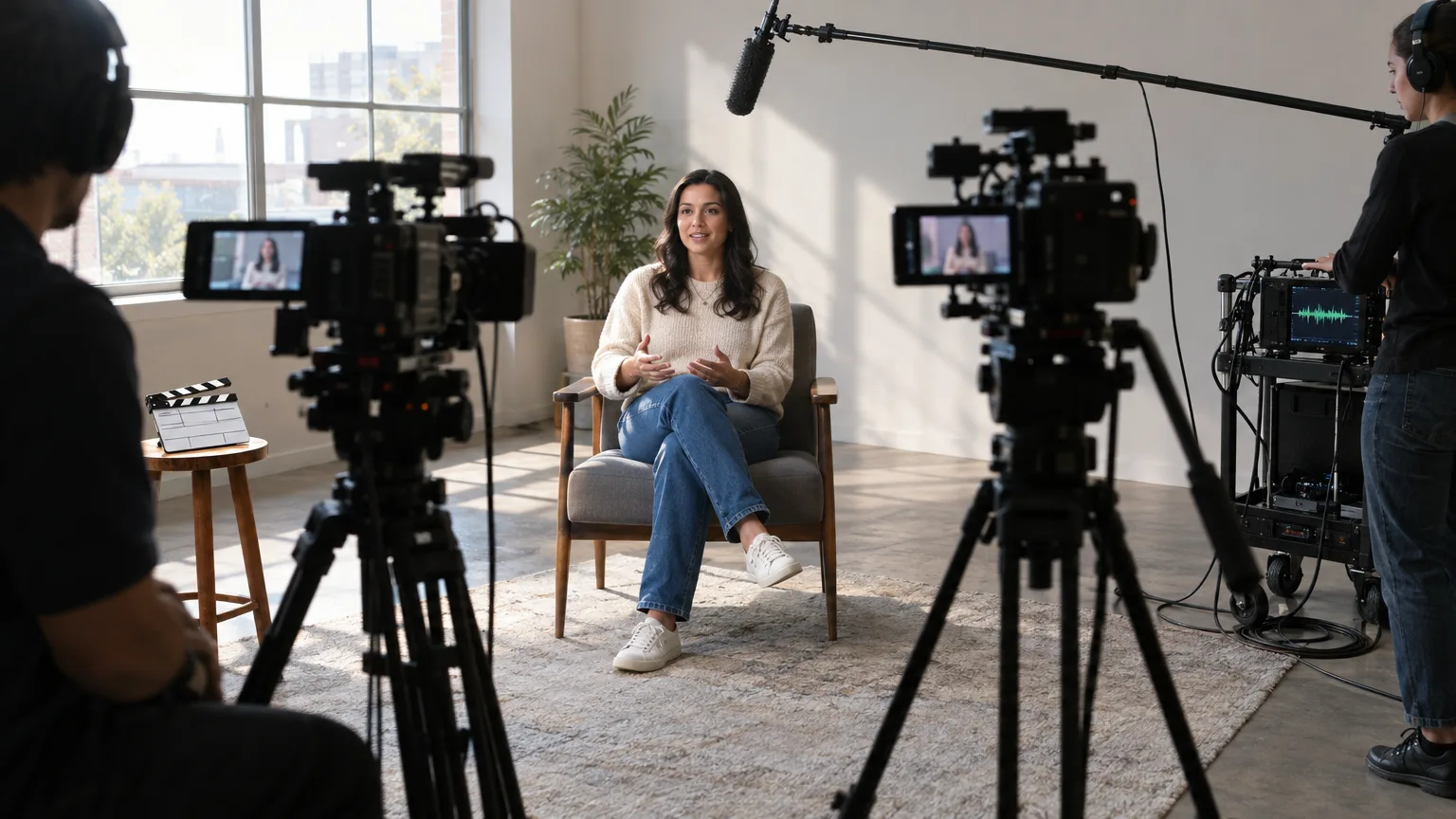
A multicam edit is the practice of cutting between two or more cameras that recorded the same moment at the same time, synced to a single shared timeline so an editor can switch angles the way a live broadcast switcher would. It shows up in interviews, panels, live events, and increasingly in documentary work shot with more than one camera on a subject. Here is how the sync, setup, and cutting actually work, and where reading the transcript first changes the process.
Why multiple cameras
What a multicam edit is actually for
A single camera on a conversation forces a choice at the shoot: point it at the host, the guest, or a wide shot, and live with that choice in the edit. Multiple synced cameras remove that constraint. You can cut to whoever is speaking, hold on a reaction, or pull wide for emphasis, and every one of those choices is made in the edit, not locked in at the shoot. That flexibility is the entire reason productions add a second or third camera even when budget is tight; it moves editorial decisions from the set to the timeline, where they can be revised.
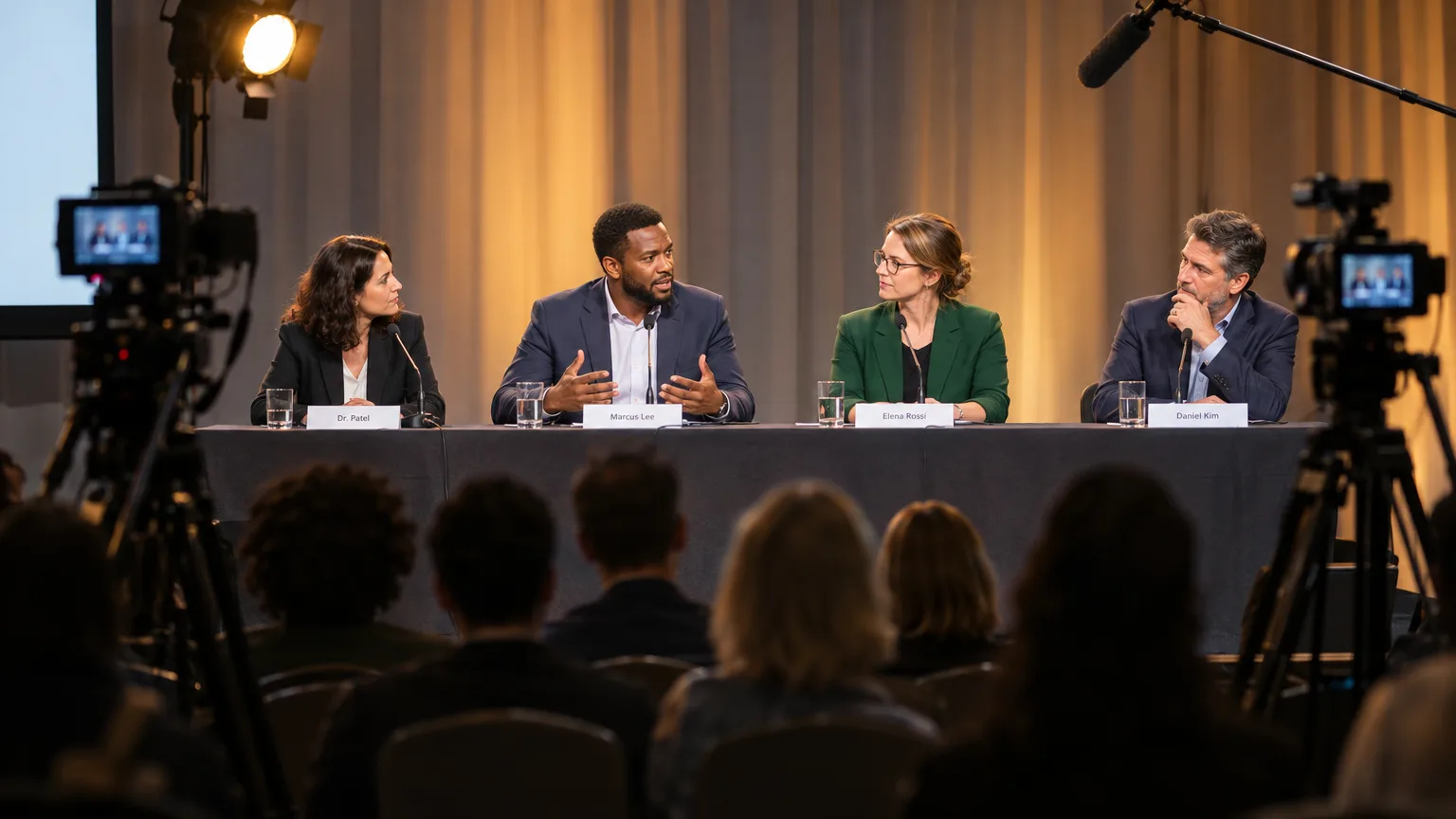
The format shows up anywhere a moment cannot be reshot. Interviews and panel discussions are the most common case, since a subject will not repeat an emotional or spontaneous answer the same way twice. Live events, from conferences to concerts, use multicam because the moment simply does not exist a second time. Late-night talk shows and studio panels run permanent multicam rigs for exactly this reason, switching live during taping and often refining the cut afterward from the same synced sources. Documentary production has increasingly adopted the same approach for sit-down interviews, adding a second or third camera specifically to give an editor genuine coverage options on unrepeatable, unscripted answers.
Syncing cameras
Three ways editors line up multiple angles
Before any cutting happens, every camera's footage has to sit on a shared timeline, frame-accurate to the others. There are three common methods:
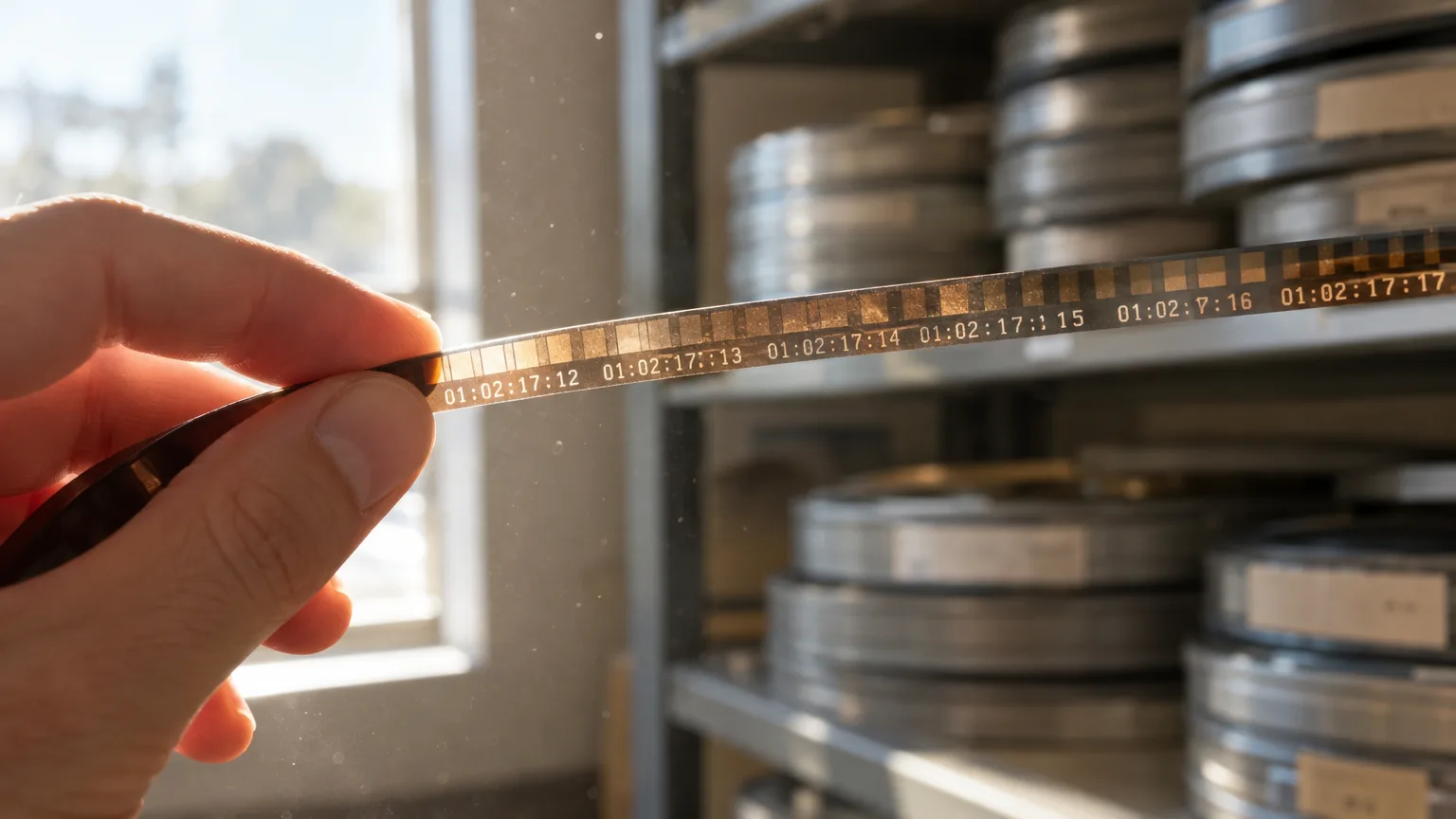
- Timecode sync. Cameras jam-synced to the same timecode source line up automatically inside most NLEs, the fastest and most reliable method when the gear supports it.
- Clapper or slate sync. A physical clap at the start of a take gives editors a shared visual and audio spike to align by hand or with auto-sync tools that detect the spike across sources.
- Waveform matching. Software aligns cameras using the audio waveform captured on each camera's own microphone, useful when no dedicated audio recorder or clapper was used, though less precise than timecode.
Documentary editor Dilesh Korya, whose broadcast credits include the BBC series Empire with historian David Olusoga and Amol Rajan Goes to the Ganges, described re-cutting a multicam series in DaVinci Resolve Studio in a RedShark News interview: "Multicams were synced and adjusted where needed." Even on a professional broadcast pipeline, sync is treated as a step to check and correct, not a fully automatic given.
Which method to use usually comes down to what the shoot can support. A well-equipped multicam shoot with a dedicated sound department will jam-sync timecode across every camera and the audio recorder before rolling, which is close to zero extra work in the edit afterward. A smaller run-and-gun shoot without that infrastructure leans on a clapper at the head of each take or, if even that was missed, waveform matching as a fallback. All three get you to the same result, a frame-accurate synced multicam clip, but the amount of manual correction needed afterward varies a great deal between them.
Setting up
Building a multicam sequence in your NLE
Once cameras are synced, most NLEs let you group the sources into a single multicam clip: Premiere Pro, DaVinci Resolve, and Final Cut Pro all have a dedicated multicam or multi-angle mode that lets you view every angle at once and switch between them live while playing back audio from one selected track. Building that grouped clip, then dropping it into a sequence and enabling multicam mode there, is the standard setup across all three, even though the menu names differ.
Audio deserves its own decision here, separate from which camera angle is on screen. Most multicam setups designate one audio source, often a dedicated field recorder or a boom mic feed rather than any camera's built-in microphone, as the reference track that plays continuously under every angle switch. Cutting picture between cameras while keeping one clean audio source underneath avoids the small level and tone jumps that come from switching both picture and sound at the same cut point.
Cutting the timeline
Editorial principles once you can switch angles
With a synced multicam clip in place, most editors do a fast pass first: cut to whoever is talking, cut wide for emphasis, cut close for a reaction shot, essentially replicating what a live TV switcher would do in real time. Refinement comes after, tightening cuts that feel too fast or too slow and checking that no cut crosses the 180-degree line in a way that flips the apparent geography of a conversation. The 180-degree rule, keeping the camera on one consistent side of an imaginary line between subjects, is what keeps a cut between two angles feeling continuous rather than disorienting.
Pacing on a multicam edit follows the content, not a fixed rhythm. A tense exchange between two panelists might justify quick cuts between reactions, while a single subject giving a long, considered answer usually plays better held on one angle for the duration, letting the performance breathe rather than chopping it up with cuts that exist only because other angles are available. Treat every angle switch as an editorial choice that has to earn its place, the same way a cut in any other kind of edit does, rather than a default behavior just because the coverage exists.
Multicam and the transcript
Deciding what stays before you decide which angle
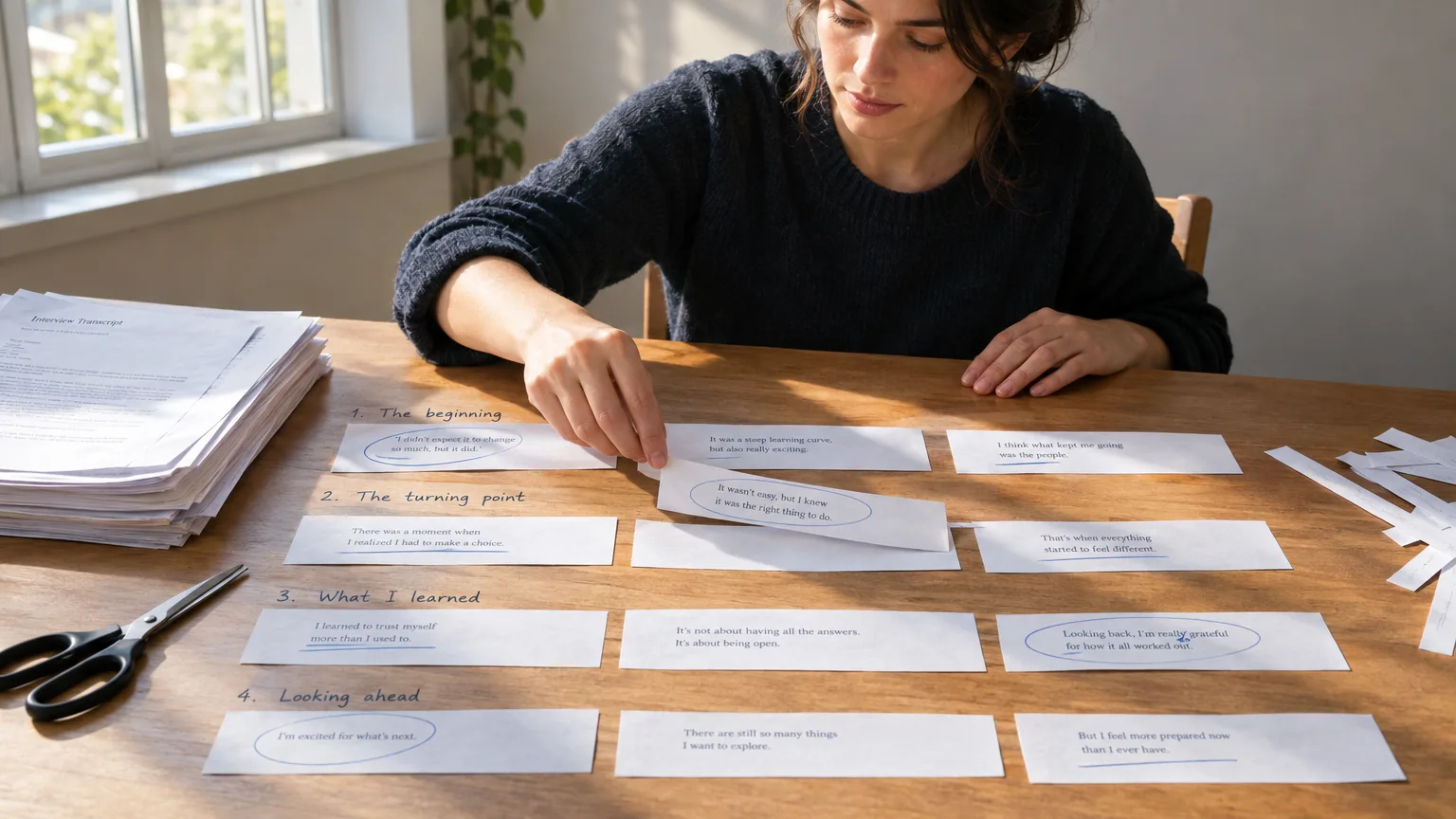
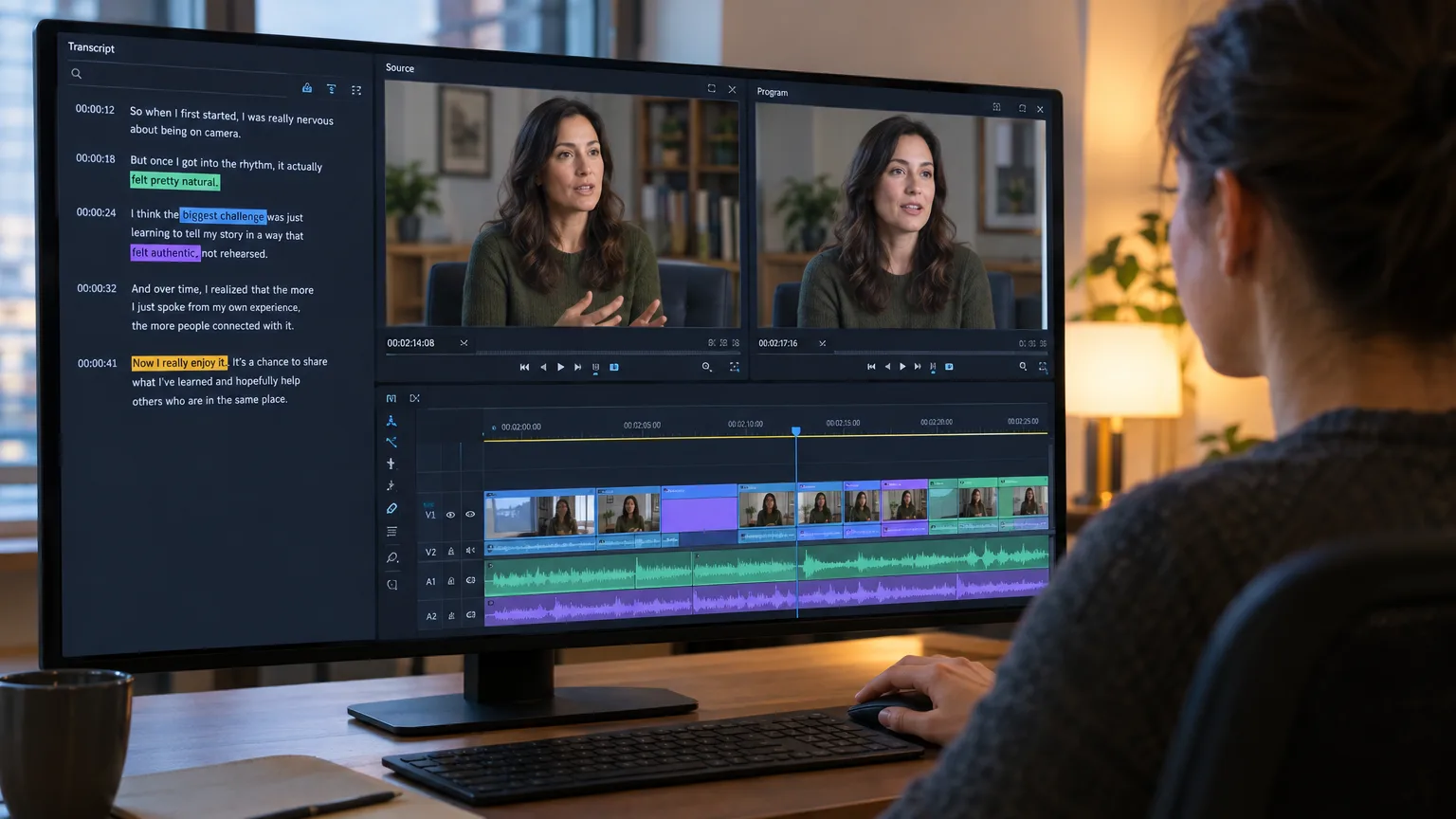
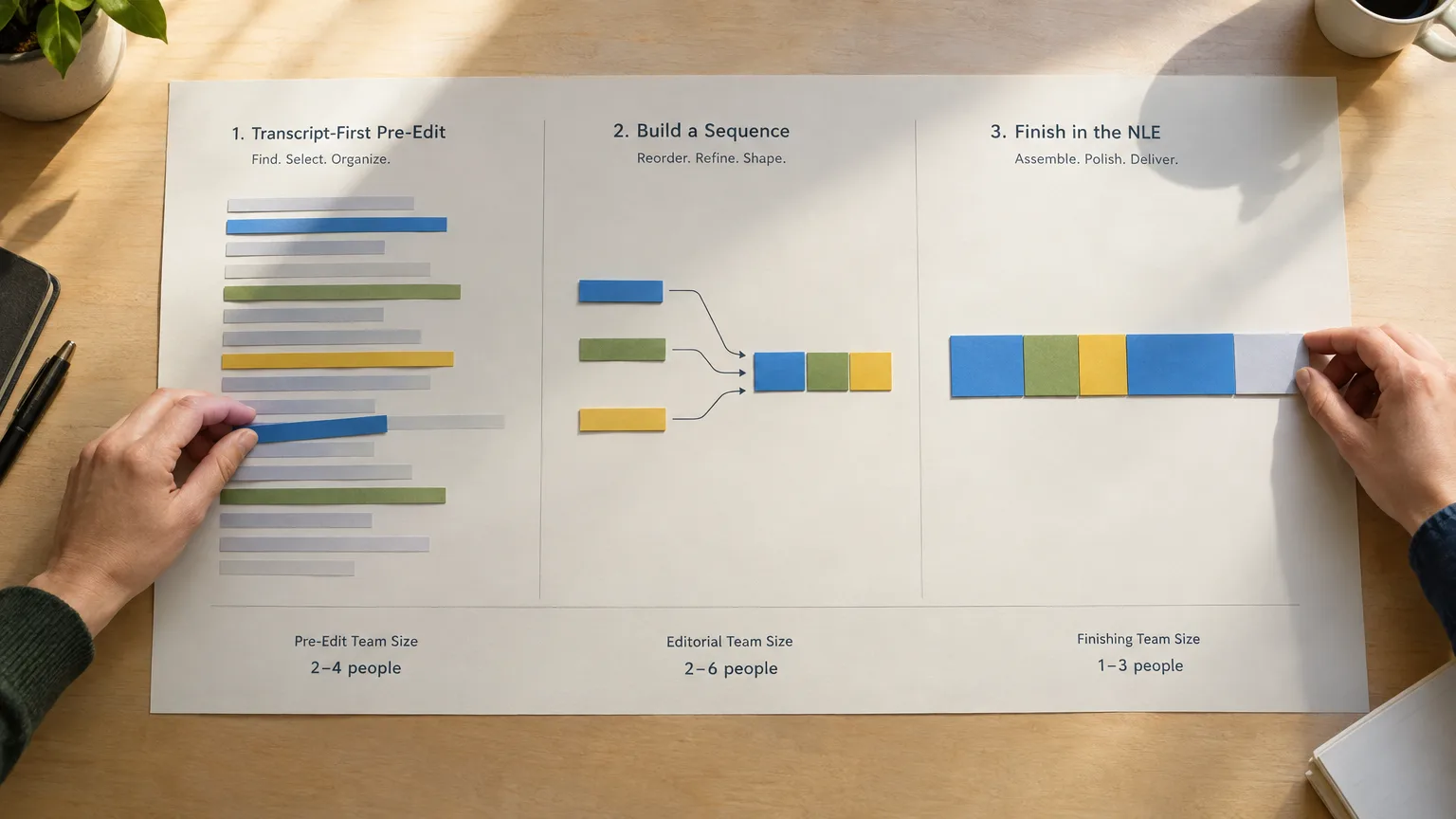
Multicam gives you angle options, but it does not tell you which forty minutes out of three hours of multicam footage belong in the final piece. That decision is a story decision, and it is faster to make on a transcript than by scrubbing every angle of every take. Korya's team applies exactly this order on interview-heavy projects: "A one-hour, three-camera interview is transcribed, exported to text, paper-edited by the producer, and then conformed back to a timeline. That saves days." Deciding story first means an editor only spends multicam-switching time on material that already made the cut, instead of angle-switching through footage that gets thrown out later anyway.
This ordering matters more as the number of cameras grows. A two-camera interview is manageable to scrub even without a transcript step first. A three-hour panel shot on four synced cameras is a different scale of problem entirely, since every minute of raw footage now exists four times over, once per angle, and scrubbing all of it to find the usable passages multiplies the time cost by however many cameras were rolling. Reading a transcript to find the story first means that multiplication never happens; the editor only opens multicam mode on the sections that survived the read.
Common mistakes
Where multicam edits go wrong
Poor sync at the start is the most damaging mistake, since a few frames of drift compounds visibly the longer a sequence runs and is far more annoying to fix after cutting has begun than before. Crossing the 180-degree line without a clear intentional reason is the second, and it reads as a continuity error even to viewers who could not name why the cut felt wrong. The third is switching angles too frequently out of habit rather than purpose. Just because four camera options exist does not mean a cut needs to visit all four in a short span; a static hold on the right angle is often the stronger editorial choice.
A fourth, easy-to-miss mistake is forgetting to check sync drift across a long recording. Some sync methods that look correct at the top of a take can drift by a frame or more over twenty or thirty minutes, particularly with waveform-based syncing on cameras with slightly different internal clocks. Spot-checking sync partway through a long multicam clip, not just at the very start, catches this before it becomes a visible lip-sync problem in the finished cut.
The takeaway
Multicam is a coverage tool, not a story tool
Multiple synced cameras give an editor more coverage options at the cutting stage instead of locking in a single angle at the shoot. That flexibility is genuinely valuable, but it solves a different problem than deciding what belongs in the film. Sync carefully, respect the 180-degree line, and decide the story on the transcript before you spend switching time on footage that might not survive the cut anyway.
Sources
- RedShark News: Cutting With Curiosity, Inside a Documentary Editor's Workflow
- Adobe: Multi-camera editing workflow in Premiere Pro
- How to Edit Multi-Camera Sequences in Premiere Pro, YouTube
Related reading: What is a paper edit?, What is an assembly edit?, What is timecode?, Premiere Pro transcript workflow, What is text-based editing?.
frequently asked questions
It is the practice of cutting between two or more cameras that recorded the same moment simultaneously, synced to a shared timeline so an editor can switch angles the way a live broadcast switcher would.
Three common ways: timecode sync (cameras jam-synced to a shared timecode source), clapper or slate sync (a physical clap aligned by hand or software), and waveform matching (aligning by each camera's own audio).
Group your synced angles into a multicam source clip, drop it into a sequence, and enable multicam mode to view every angle at once and cut live while one selected audio track plays continuously underneath.
It means keeping the camera on one consistent side of an imaginary line between subjects. Crossing it mid-cut flips the apparent geography of a conversation and reads as a continuity error.
No, though it is the fastest and most reliable method. Clapper sync and waveform matching both work as fallbacks when cameras were not jam-synced to a shared timecode source at the shoot.
Multicam gives you angle options, but deciding which material belongs in the final piece is a story decision, faster to make by reading a transcript than by scrubbing every angle of every take.
You might also like...

Start selecting.

Pick the story in the transcript, export a finished rough cut and ready to post short form video.
What are you looking for?
Get the ScriptCut newsletter
Thanks! Check your inbox to confirm.
Something went wrong. Please try again.