
New feature
Timing: Reframe A Moment, Keep The Voice
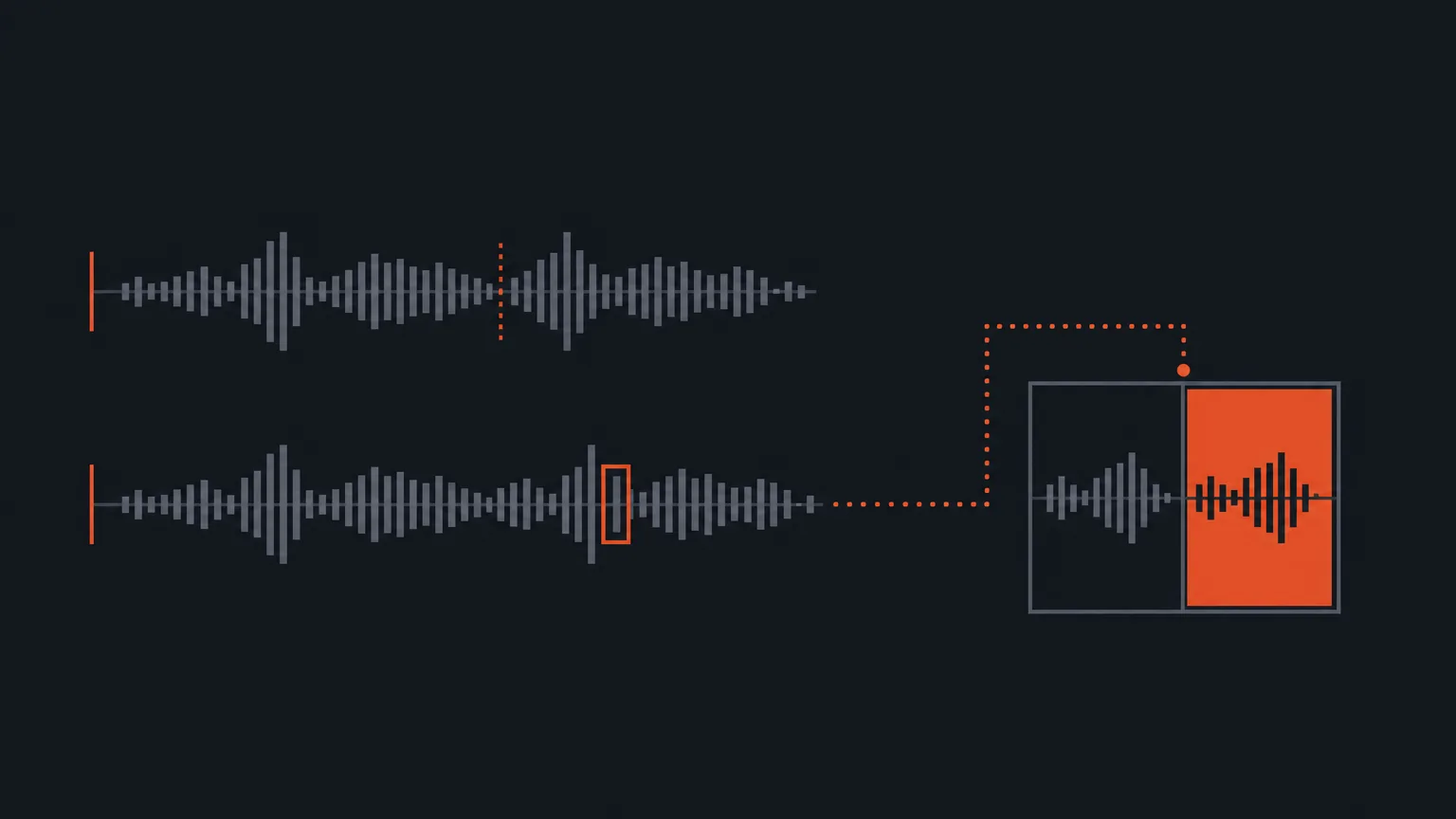
Timing lets you pull in a different moment of the same recording to sit beside or instead of the current shot, without touching the audio.
What it is
Every shot in a split screen panel has two controls: Position and Timing. Position is the ordinary framing you already know: it moves the picture inside its panel. Timing is different. Switch to it and dragging the picture left or right pulls in an earlier or later moment from anywhere in the original recording. The voice never moves. Only the picture does.
A small badge always marks a panel that has been shifted this way, so you and anyone reviewing the clip can see at a glance that the picture is not from the same instant as the audio.
The problem it removes
A talking head clip often needs a second visual layer: a reaction, a wider shot, a moment where the same person is doing something instead of just speaking. Normally that means finding or shooting extra footage. Timing gives you a second way to get that effect using only the recording you already have. You are not limited to the exact second the words were spoken.
How it works
Say you are cutting a clip of a coffee brand's founder explaining her process. The line you want plays over her sitting still at the table. Open the shot's controls in the Social clip editor, switch from Position to Timing, and drag the picture to a moment later in the same recording where she is actually pouring a cup. Drop that into one panel of a split screen, keep her talking voice in the audio, and the clip now shows her hands at work while she explains the process in her own words, all from a single recording.
Who it helps
This is for anyone turning a long recording into social clips: podcast editors who want a second angle without a second camera, documentary and vlog editors building split screens from one shoot, and agencies or marketers who need more visual variety from a single interview or talking-head session. Nobody has to schedule a reshoot or hunt for stock footage just to break up a static shot.
Try it
Open a Social clip, switch a shot to Timing, and see what the rest of your own recording can give you. Start in ScriptCut.
frequently asked questions
No. Timing only shifts the picture to an earlier or later moment of the same recording. The voice you hear stays exactly as spoken.
A small badge always appears on any panel where the picture has been shifted with Timing, so it's clear at a glance.
Yes. Position is the ordinary framing control for a shot. Timing replaces that and instead lets you drag to a different moment from anywhere in the original recording.
No. Timing pulls from the same recording you already have, so it's a way to get a second visual layer without shooting or uploading anything new.
Yes. B-roll upload is also supported in the Social suite, either covering the whole picture or filling one panel of a split screen. Timing is a second way to get a similar effect using only footage you already recorded.
It sits beside each shot's controls in the Social clip editor, as a switch you toggle between Position and Timing.
Start selecting.

Pick the story in the transcript, export a finished rough cut.
Get the ScriptCut newsletter
Thanks! Check your inbox to confirm.
Something went wrong. Please try again.