
Improvement
Creative Split Screen Layouts
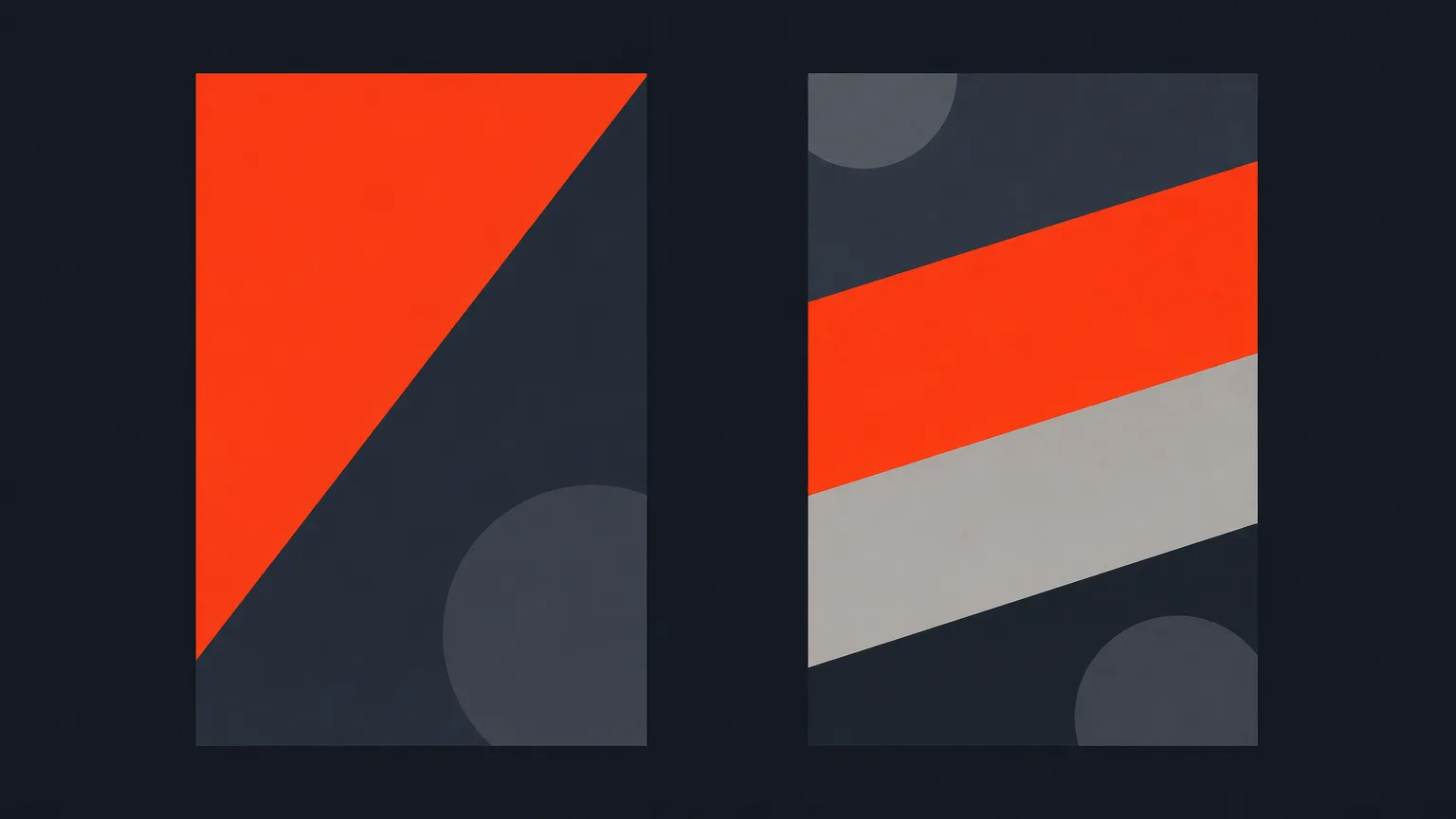
Split screen in the Video step now has a Creative column: a diagonal two-way split and slanted three-way bands, in addition to the standard rectangles.
What Changed
When you force a Split screen on a shot, the menu now shows two columns: Standard and Creative. Standard keeps the plain rectangle panels you already know. Creative adds a diagonal split for two panels and slanted bands for three panels. You can apply either style to any shot, whether it started as a single person or a multi-person scene.
Why It Matters
Rectangular split screens work, but they can look flat when every clip in your feed uses the same grid. A diagonal or slanted layout gives a shot more energy without changing what's actually being said. For social clips especially, that small visual shift can make a talking-head or reaction moment stand out in a scroll full of straight lines.
How It Works
Pick a shot in the Video step, open Layout, choose Split screen, then pick a panel style from Standard or Creative. Each panel, rectangular or diagonal, is dragged, zoomed, and re-timed exactly the same way. Say you're cutting a two-person podcast clip for vertical: instead of a straight vertical line down the middle, you apply the diagonal split, drag each host into their half, and the render follows the same angled shapes you see in the preview.
Who This Helps
Anyone turning long recordings into social clips: podcast editors, agencies cutting reaction or panel content, and marketers who want a feed that doesn't look like a grid of identical templates. It also helps on single-person recordings where you want a split-screen look for stylistic reasons, since Creative panels work on any shot, not just multi-speaker ones.
Good To Know
What you see in the preview is exactly what renders, so the diagonal or slanted shapes in your edit are the shapes in your final export. If a Creative layout doesn't work for a particular shot, right-click it and choose 'Reset selected clip' to put the framing back to fully automatic without touching your cuts, trim, or captions.
Try the new layouts in ScriptCut.
frequently asked questions
In the Video step, when you force a Split screen on a shot, the menu now shows two columns: Standard for plain rectangles and Creative for the diagonal and slanted styles.
Yes. Split screen, including the Creative diagonal and slanted styles, can be forced on any clip, even one with a single person.
Yes. Each panel in a Creative layout is dragged, zoomed, and re-timed exactly like a panel in a Standard rectangular layout.
Yes. What you see in the preview is exactly what renders, so the finished clip is cut to the same shapes shown in the layout preview.
Right-click the shot and choose 'Reset selected clip' to return just its framing to fully automatic, without affecting cuts, trim, or captions.
No. Layout changes only affect framing and panel arrangement, and you can adjust cuts, trims, and keyframes on the timeline independently.
Start selecting.

Pick the story in the transcript, export a finished rough cut.
Get the ScriptCut newsletter
Thanks! Check your inbox to confirm.
Something went wrong. Please try again.